Loading
2026/08/24
Architecture Render to Video AI: A Practical Workflow
Turn a single architectural render into a walkthrough video with AI. A practical workflow for architects, interior designers, and archviz teams.
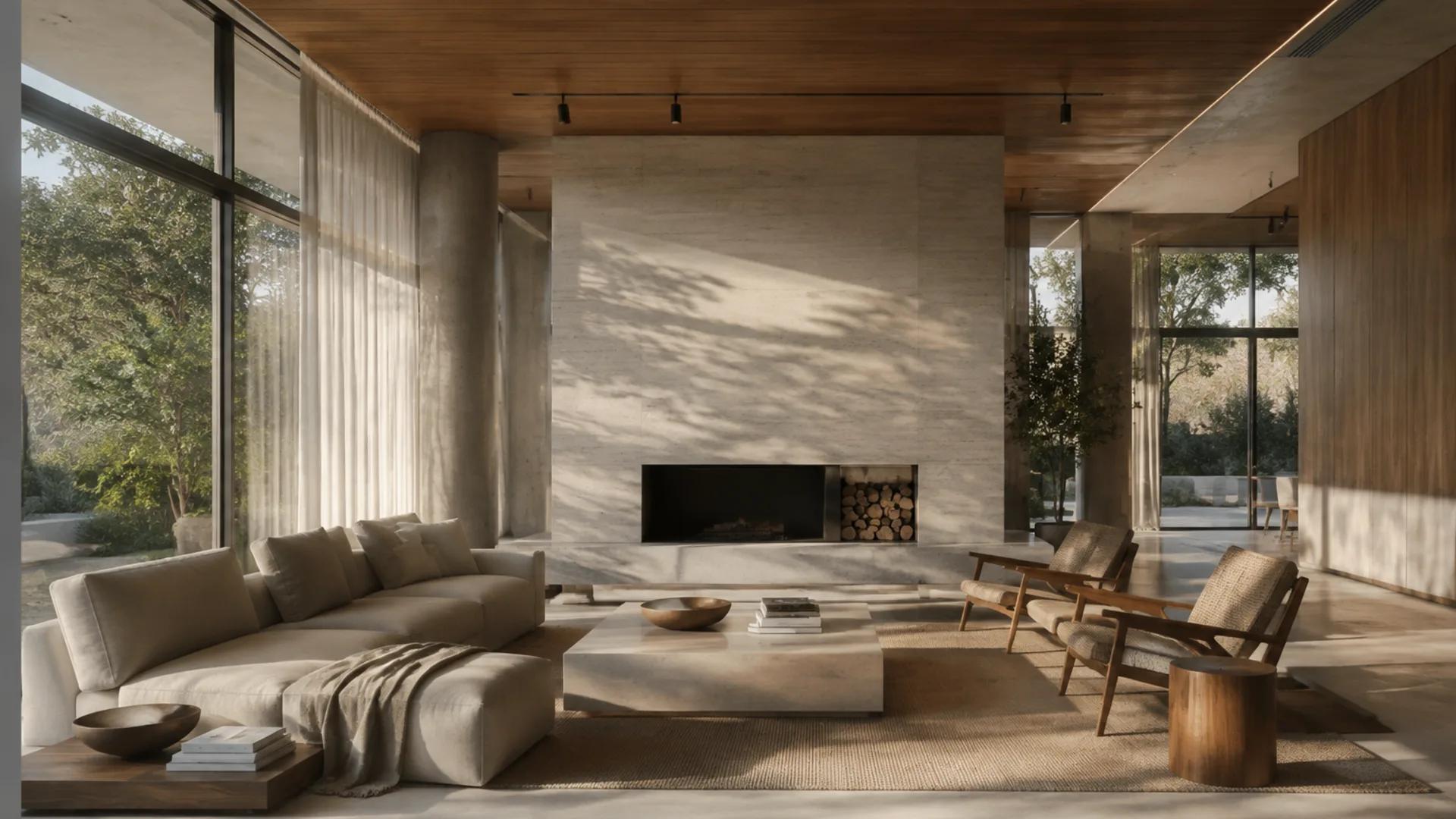
Architecture render to video AI lets you turn a single finished render into a short motion concept without first rebuilding a camera path in a 3D package. For architects, interior designers, archviz artists, and property developers, an animated version of an approved still can communicate atmosphere, weather, movement, and the intended experience of a space.
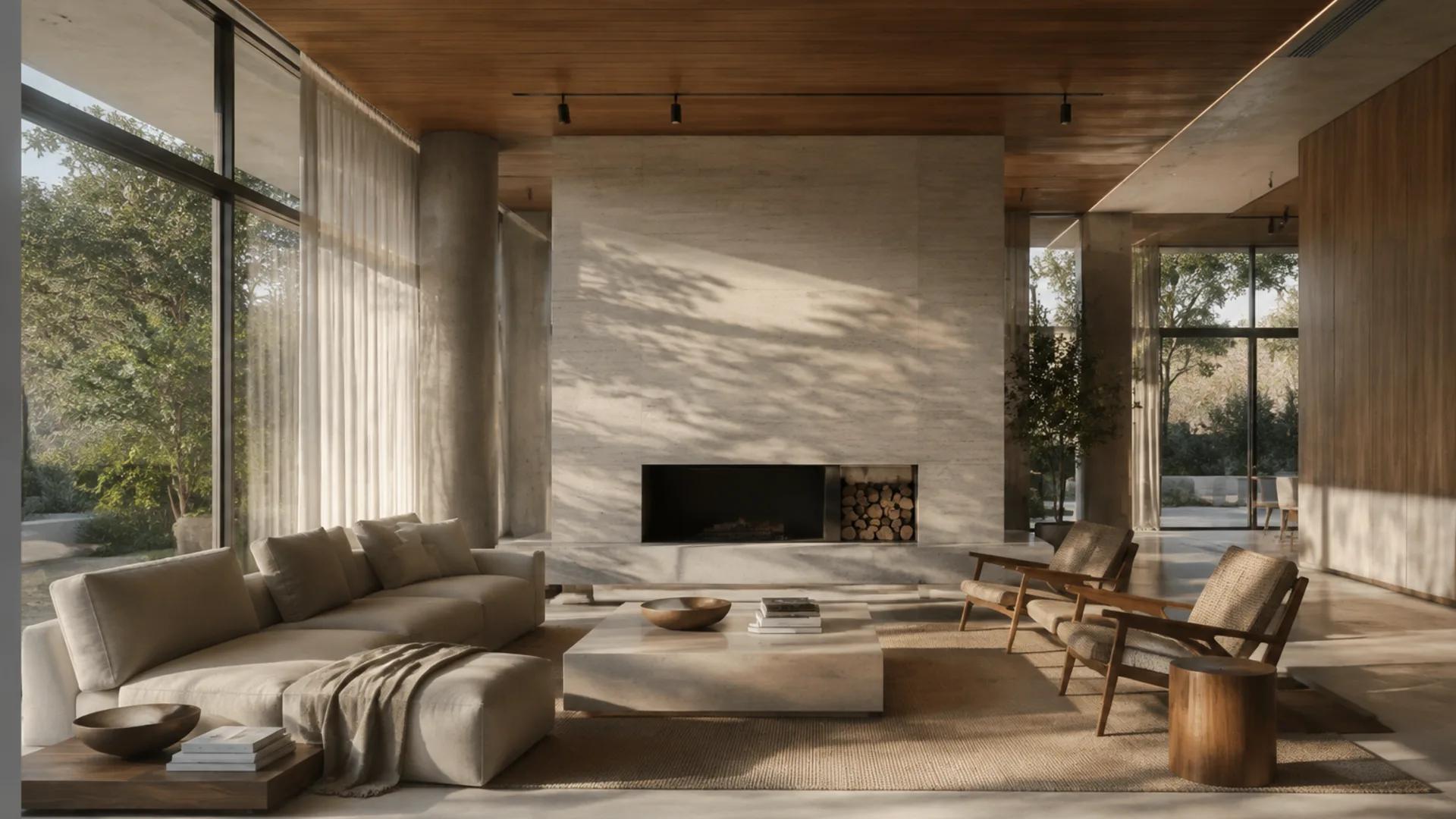
This guide walks a practical, repeatable workflow: when AI fits and when it doesn't, how to prepare source renders, what to ask the model for, how to budget motion, and how to QA the output frame by frame. It ends with a small production plan and an FAQ.
Architecture render to video AI: where it fits
AI video generation is a pre-visualization and communication layer, not a documentation tool. Its strengths:
- Reuse an approved viewpoint. You can explore motion from a still that already has the right composition, materials, and lighting direction.
- Communicate atmosphere. Subtle movement can show curtains, planting, reflections, weather, or a lighting transition without claiming to document the finished building.
- Test presentation ideas. Short generated takes can help a team compare a locked shot, a push-in, and a detail move before deciding whether a native 3D animation is worth producing.
Its limits are structural. A generated clip from one image cannot reveal verified hidden geometry; it has never seen behind a wall or inside a closed cabinet. It cannot replace BIM/3D documentation, constructability review, or design approval. Walls, windows, furniture, materials, landscaping, reflections, and apparent scale can all drift during generation. Treat every frame as an approximation of intent, never as a measured representation.
The practical rule: use AI video for the story you tell a client about a design, and keep the 3D/BIM model and drawings as the source of truth for what the design actually is.
Prepare the source render
Output quality caps out at source quality, so render with intent. This is the step most people skip and the one that changes results most.
- Use your best still. The cleaner the render, the less the model has to "fix," and the less it improvises in unwanted places. Grain, denoise artifacts, and chromatic aberration invite the generator to invent detail.
- Shoot deep. Frames that work well are ones with obvious depth cues: perspective, a visible floor and ceiling plane, strong light and shadow, a clear focal point. These give the motion model something to reason about.
- Export a clean, appropriately sized image. Preserve sharp edges and material boundaries, then confirm the current upload limits in the live tool before generation.
- Lock the composition you want to keep. Decide the hero element before generating. If the model is handed a frame with three equal-interest objects, it picks its own camera; you lose control.
- Clean the frame of text. Exact labels, dimensions, logos, and project text belong on the final edit, not in the render. Expect to add those in post — never expect the generator to reproduce them legibly.
Geometry and material preservation get harder the more motion you ask for. A slow, shallow push-in on a well-built frame preserves more than a sweeping dolly through an untextured model. Budget motion according to how much you need the subject to stay identical.
Use the source-image selection guide to score sharpness, geometry, depth, text risk, and composition before choosing between several renders.
Budget the motion
Every second of movement is a chance for the model to drift off your design. The core question is: how much motion do I actually need?
- Locked-camera atmosphere. No camera movement, only subtle internal motion such as planting, a curtain, or shifting light. This asks the model to invent less off-frame geometry.
- Slow push-in or pull-back. A gentle single-axis move toward or away from the subject. It can create a sense of arrival while keeping the visible viewpoint change modest.
- Small pan. Swiveling while keeping the subject roughly centered. Keep it short so the model does not have to build too much beyond the source frame.
- Walkthrough or dolly. Continuous forward travel through the space. Furniture placement, materials, and proportions have more opportunity to shift, so keep the move simple and expect a stricter QA pass.
A good default for a client-facing piece: one hero walkthrough shot supported by several locked or slow shots, then cut them together in post. Variety of composition beats a single long risky move.
The AI video camera movements guide explains the difference between a push, pan, tilt, orbit, and locked shot so you can choose the smallest move that serves the presentation.
Aspect-ratio planning
Decide the deliverable before generating, because it sets the canvas. A 9:16 vertical composition can suit social reels; 4:5 can preserve more horizontal context in a mobile feed; and 16:9 suits presentations and embedded web galleries. Available ratios vary by model, so check the current controls before planning a deliverable. If the same render must serve both a pitch deck and a vertical post, prepare destination-specific versions rather than relying on one compromised crop.
Prompting
Good prompts are short, concrete, and cinema-directed: they describe the camera and motion, then the atmosphere, then the scene. Keep them in plain language — you are giving an art director's note, not a spec sheet.
A dependable shape:
- Camera + move: "slow push-in," "locked camera," "gentle dolly forward," "low-angle tilt up."
- Motion subject: what visibly moves, and how gently: "curtains drift," "trees sway lightly," "sunlight slowly crosses the stone floor."
- Atmosphere: time of day, weather, light quality, mood.
- Scene recall: restate the key elements you want preserved — "the white two-story house with a flat roof and large glazing."
Start with the motion that matters most and add detail only when a test shows it is needed. Runway's official Image-to-Video Prompting Guide recommends focusing on motion because the source already provides composition, subject, lighting, and style. Google's image-to-video best practices likewise recommend a high-quality source and prompts centered on camera, subject, and environmental motion.
Example — exterior approach:
Slow push-in toward the house, gentle dolly along the driveway. Trees sway lightly in a warm late-afternoon breeze. The modern two-story home with a flat roof, warm wood cladding, and floor-to-ceiling glazing stays centered as we approach.
Example — interior push-in:
Locked camera at eye level, slow push-in through the open-plan living area. Soft daylight from large windows, blinds shifting slightly. Walnut kitchen cabinetry, a low concrete-finished island, and a pale oak floor hold their proportions as the camera advances.
Example — facade / material detail:
Slow lateral pan across the facade. Sunlight rakes across the stone and steel cladding, catching the texture. Emphasis on material detail, no camera movement toward the building.
Example — locked-camera atmosphere:
Fixed tripod shot inside the courtyard at dusk. Light slowly fades, warm interior lights come on inside, a single olive tree stirs gently in the breeze.
Add motion references deliberately: name one or two moving elements, not ten. Every extra moving object is a fidelity risk.
Generation workflow
Run from your prepared still, then iterate — generation is a dialogue, not a one-shot render.
- Start short and simple. A few seconds of slow motion on your clearest frame. Confirm the model holds the design before adding complexity.
- Confirm the palette and lighting early. First-iteration mismatches here signal prompt or source problems you want to fix before investing in a long clip.
- Scale complexity up only after early passes pass. Gradual push-in first, then a modest pan, then the walkthrough — if you need one at all.
- Keep a source log. Document which render, which prompt, and which settings produced each take, so a client request for a variant doesn't mean rediscovering the parameters.
Model availability, duration, resolution, aspect ratios, audio options, and credit costs vary by provider and can change. Confirm the current controls and displayed cost in the live image-to-video workspace before submitting a batch.
When two shots must meet at a planned composition, the first-and-last-frame workflow explains the additional preparation and QA involved. Support for start and end frames also varies by model.
Frame-by-frame architecture QA
Play the result and audit it like a critic, not like someone who is relieved it exists. Check each of these:
- Proportions and scale. Do windows, doors, and room heights hold their relative sizes across the clip? Sudden widening or narrowing is a red flag.
- Structure. Do walls, columns, and floors stay where they should, or does the frame feel under load?
- Facade and materials. Did the facade pattern, cladding, or glazing glitch at the edges of motion?
- Furniture and layout. Does the plan read the same at the end as at the start?
- Reflections. Are glass and polished floors still believable, or do they bend the scene?
- Ground, landscaping, and foreground. The quiet corners of the frame are where models most often improvise.
Watch the complete clip, loop it, and sample individual frames on the screen used for review. A brief deformation can be easy to miss at full playback speed and obvious when a stakeholder pauses the presentation.
Common failures and fixes
- Walls, windows, or doors change between frames. Reduce camera motion, slow the move, strengthen the "hold proportions" clause in the prompt, or generate with a locked camera.
- Furniture drifts or multiplies. Simplify the scene or the motion. Too many distinct objects and too much travel are the usual causes.
- Materials bleed. Veneer that turns to drywall, glass that turns to water. Tighten the source render's material clarity and shorten the shot.
- Reflections distort. Most reliable with low or slow motion; tall, busy reflective glazing is the hardest subject.
- Scale inflates or collapses. Usually from strong perspective plus long dolly moves. Re-frame the source with less foreshortening at the edges.
- The clip just doesn't move. Some scenes the model reads as "already still." Try a clearer subject for motion, or a slightly different camera instruction.
When a take fails, change one variable at a time — the prompt, the source frame, or the motion — not all three at once, or you will not know what fixed it.
Use the AI video artifact troubleshooting guide to decide whether to simplify the prompt, repair the source, regenerate, or correct a limited issue in post.
Client-review disclosure
Say plainly what the deliverable is. A clip generated from a still is an animated visualization of intent, not a precise or an as-built representation. Brief your stakeholders before they watch, so the right conversation happens about the design — not about whether a sink moved. A one-line disclosure in the hand-off ("AI-animated pre-visualization from the approved render; verify geometry and dimensions against the model") prevents real confusion. This is a communication and scope step, not legal advice — if contractual accuracy matters, consult someone qualified rather than inferring it from a blog post.
A small production plan for one piece
For a single submission or pitch video, run this order:
- Decide the deliverable and aspect ratio.
- Choose one hero still and one or two supporting stills.
- Clean frames of text and render any source fixes needed.
- Author three or four camera prompts: walkthrough, push-in, detail, atmosphere.
- Generate short takes; pick the strongest and iterate on it.
- QA frame by frame against the checklist.
- Add titles, dimensions, and logos in post; cut the approved shots together.
- Loop in client with the disclosure ready.
If the piece uses multiple viewpoints, map them first with the AI video storyboard playbook so every generation has a clear job in the final sequence.
FAQ
Do I need the 3D model to use this? No. You generate from a 2D render. But the model, drawings, and BIM data remain the reference that is accurate — treat the video as pre-visualization only.
Can I use this for final, construction-phase deliverables? Treat it as communication, not documentation. It cannot verify hidden geometry or replace construction or design documentation.
What does "the generator can change my design" actually mean? In any frame, walls, windows, doors, furniture, materials, landscaping, reflections, or scale can be altered. QA catches what it can, but it cannot be made faithful on command.
Can one render produce verified views from other angles? No. A single perspective does not contain hidden geometry. If you need several accurate viewpoints, render them from the native 3D model and treat each approved still as a separate source for its own shot.
Turn one approved render into one reviewable shot
Architecture render to video AI is a communication tool, not a substitute for the model, the drawings, or design approval. Its real value is the near‑future feel it adds to a still: a walkthrough, a drifted curtain, an afternoon crossing a floor. Render clean, budget motion honestly, prompt the camera more than the effects, QA every frame, and disclose what the clip is and is not.
Start small. Turn one approved render into one short, well-controlled shot for a deck or project page, then compare every frame with the source. Record the prompt, settings, failures, and accepted result before moving to the next view. The reusable asset is not only the clip; it is a reviewable process that keeps visual storytelling separate from design truth.
Author

Categories
Architecture render to video AI: where it fitsPrepare the source renderBudget the motionAspect-ratio planningPromptingGeneration workflowFrame-by-frame architecture QACommon failures and fixesClient-review disclosureA small production plan for one pieceFAQTurn one approved render into one reviewable shot
More Posts
AI Portrait Animation From Photo: Subtle Motion Without a Talking Avatar
A practical guide to AI portrait animation from photo: how to prep the image, set a motion budget, write prompts, keep identity, and QA the result.
Kling 3 vs Runway Gen-4 (2026): I Tested Both on 20 Images
Real side-by-side test: faces, camera moves, speed, and cost. See which AI video model wins for your use case — and try both free, no credit card.
Gemini Omni Video Generator Guide
What Gemini Omni can do for multimodal AI video, when to use it, and how to handle preview-model reliability inside ImageToVideoAI.
Newsletter
Join the community
Subscribe to our newsletter for the latest news and updates