Loading
2026/06/28
Pet photo to video AI: make your dog or cat actually move (2026)
Turn a still photo of your pet into a video where they wag, blink, or stretch — the prompts, the models, and the settings that keep fur texture and face shape intact.
Why pet photos are worth animating
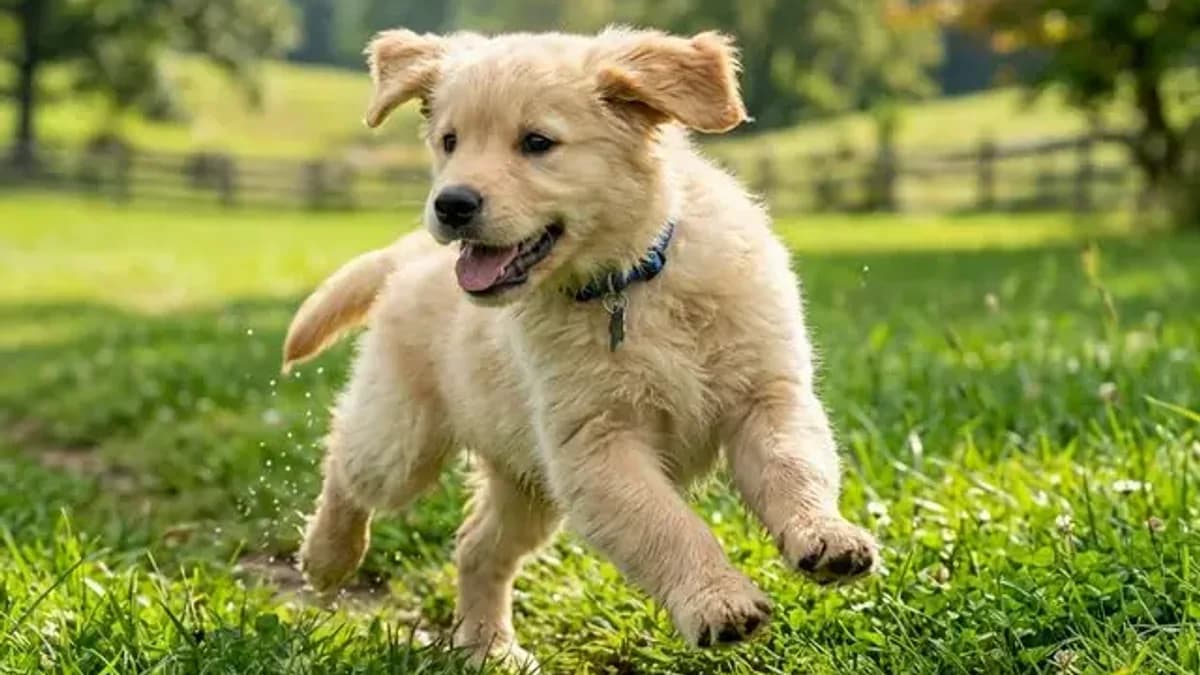
A photo of your dog catches one moment. A video catches the same dog as he actually was — the head tilt, the slow blink, the tail beginning to move. That's what people share. That's what people come back to after a pet is gone.
AI video generation has gotten good enough in 2026 that a single pet photo can produce a natural-looking clip in about two minutes. The model interprets the fur texture, the body shape, and the lighting, then adds motion that looks like it belongs there. You don't touch a timeline or a keyframe.
The Image to Video workspace is the safest place to start: upload the pet photo, choose a video model, and use the motion prompts below to keep fur, eyes, and face shape stable.
What AI does well with pet photos — and what it doesn't
Before writing any prompt, it helps to know where the technology is reliable.
| What works well | What causes problems |
|---|---|
| Subtle head turns and ear movements | Fast running or jumping |
| Slow blinking and nostril movement | Complex multi-pet scenes |
| Fur rippling in a breeze | Small details like leash tags or collar text |
| Tail wagging (gentle, low speed) | Long clips (over 8 seconds starts to drift) |
| Breathing motion on a still body | Breed-specific markings on complex coats |
The rule: ask for gentle, slow motion and you'll get something that looks real. Ask for a sprint and you'll get a melting dog.
Copy-paste prompts for each pet type
These prompts work across models. Keep the bracketed part and swap it for your actual photo description.
Dogs
Slow head turn to the left, soft tail wag, gentle breathing visible in the chest, fur rippling lightly. No camera movement. 6 seconds.
Cats
Slow blink, subtle ear rotation, whisker twitch, tail tip curling gently. Locked-off camera. 5 seconds.
Birds (parrots, cockatiels, canaries)
Slight head bob, feathers ruffling lightly, blinking, occasional small shuffle on the perch. No camera movement. 5 seconds.
Rabbits
Nose twitching, slow ear rotation, gentle whisker movement. Camera locked off, no motion blur. 5 seconds.
Small dogs / puppies
Gentle head tilt to one side, ears perking up, soft panting with small chest movement. 5 seconds.
Senior or sleeping pets
Subtle breathing rise and fall, occasional ear flick, eyelids flutter slightly. Very slow, serene motion. 6 seconds.
For all of these, add preserve fur texture and facial features at the end. That single clause is the difference between fur that looks real and fur that smears.
Step by step: from photo to moving clip
1. Choose the photo
The best source photo has:
- One pet, centered or slightly off-center
- Clear, well-lit fur or feathers (natural light works best)
- A simple or blurred background
- The pet's face visible — eyes and nose in frame
Avoid photos where the pet is mid-bark, ears are fully flattened, or the composition is extremely tight (nose filling the whole frame leaves the AI nowhere to go).
2. Upload to the workspace
Open the Image to Video workspace, drag in the photo, and wait for it to process. It accepts JPG, PNG, and WebP at any resolution.
3. Write the motion prompt
Paste one of the prompts above. Add your pet's specific trait if it matters: "floppy ears" or "short nose (brachycephalic)" helps the model allocate motion correctly. Always end with preserve fur texture and facial features.
4. Pick the model
| Model | Best for |
|---|---|
| Kling 3 | Dogs, cats — best face and fur consistency |
| Hailuo 2.3 | Quick previews, portraits |
| Kling 2.5 Turbo | Fast test renders before committing to Kling 3 |
| Runway Gen-4 | Artistic, cinematic interpretations of pet portraits |
Start with Kling 3 for anything where the face matters. It's the strongest model for maintaining breed-specific features across the motion.
5. Generate and download
Hit Generate. Wait 60–120 seconds for Kling 3, under 60 seconds for Turbo. Preview in-browser, then download as MP4. No watermark, no credit card required for free credits.
Tips for fur and face that don't melt
Fur is the hardest thing for AI video to preserve. A few small choices matter more than the model:
- Go slow. Every prompt should include a speed word: gentle, subtle, slow. Fast motion is where AI smears fur into a blur.
- One type of motion. Pick breathing or a head turn or a tail wag — not all three. Multi-motion prompts compete with each other and the face pays the price.
- Add the preserve clause.
Preserve fur texture and facial featuresis not decorative. It directly instructs the model to prioritize consistency at those regions. - Keep the clip short. 5–6 seconds is the sweet spot. At 8+ seconds, drift accumulates and ears start to shift shape.
- Regenerate, don't reprompt. If the first render is 80% right but the eyes look off, regenerate with the same prompt before changing anything. The same prompt can produce a noticeably better result on the second attempt.
Making a video from multiple pet photos
The workspace handles one image per generation, but you can build a short sequence:
- Generate 3–4 separate clips from your best photos
- Trim each to 4–5 seconds in any video editor (Photos on iPhone works)
- Add a crossfade and a music bed
- Export as one file
This is the approach most people use for memorial videos or social posts — a short montage of the pet's best moments, each one animated.
Frequently asked questions
What's the best AI model for animating dog photos? Kling 3. It has the strongest breed-feature retention — a golden retriever stays golden, a husky's eyes stay blue. For fast testing, use Kling 2.5 Turbo and then re-render with Kling 3.
Why does my cat's face look distorted after generation?
Almost always a missing preserve clause or a prompt asking for too much motion at once. Add preserve fur texture and facial features and simplify to one motion type (just blinking, just breathing).
Can I animate a photo of a pet that has passed away? Yes, and this is one of the most common uses. The platform works with any clear pet photo. Keep the motion gentle — a slow breathing animation is often more meaningful than elaborate movement.
How long should the clip be? 5–6 seconds. Short enough that AI drift doesn't accumulate, long enough to feel like a moment rather than a frame.
Can I use the clip on social media? Yes. All outputs are MP4, watermark-free, and you own the result. Paid plan outputs include commercial use rights.
Do I need a video with the pet talking or making sounds? That's a separate workflow. This guide focuses on natural pet motion from a still photo, not voice cloning or dialogue.
Try it on your best photo
Pick a photo where the face is clear and the fur is well-lit. Open the Image to Video workspace, paste the prompt for your pet type, and select Kling 3. New accounts start free — no credit card. See pricing for more.
See also
Author

Categories
More Posts
Fashion Photo to Video AI: Lookbooks, Reels & Product Pages
Turn fashion photos into usable motion clips with source-image checks, garment-safe prompts, aspect-ratio planning, frame QA, and batch production tips.
Food Photo to Video AI: How to Create Reels and TikToks
A practical food photo to video AI workflow: pick the right shot, judge which motions are safe, use copy-paste prompts, and ship a 15-second vertical Reel that still looks like your food.
Animate old photos & make AI hug videos: 2026 guide
A current, screenshot-based guide to animating old photos and creating AI hug videos with ImageToVideoAI's real workspace.
Newsletter
Join the community
Subscribe to our newsletter for the latest news and updates