Loading
2026/07/08
Veo 3.1 reference image workflow: keep subjects consistent across clips
A practical Veo 3.1 reference image workflow for image-to-video creators — how to pick reference frames, write prompts, and stack clips without losing your subject.
Why a reference image workflow matters now
The biggest complaint in image-to-video generation is still the same one: the subject drifts. The face you started with is not the face you ended with. The jacket changes color halfway through the pan. The living room turns into a different living room by second six.
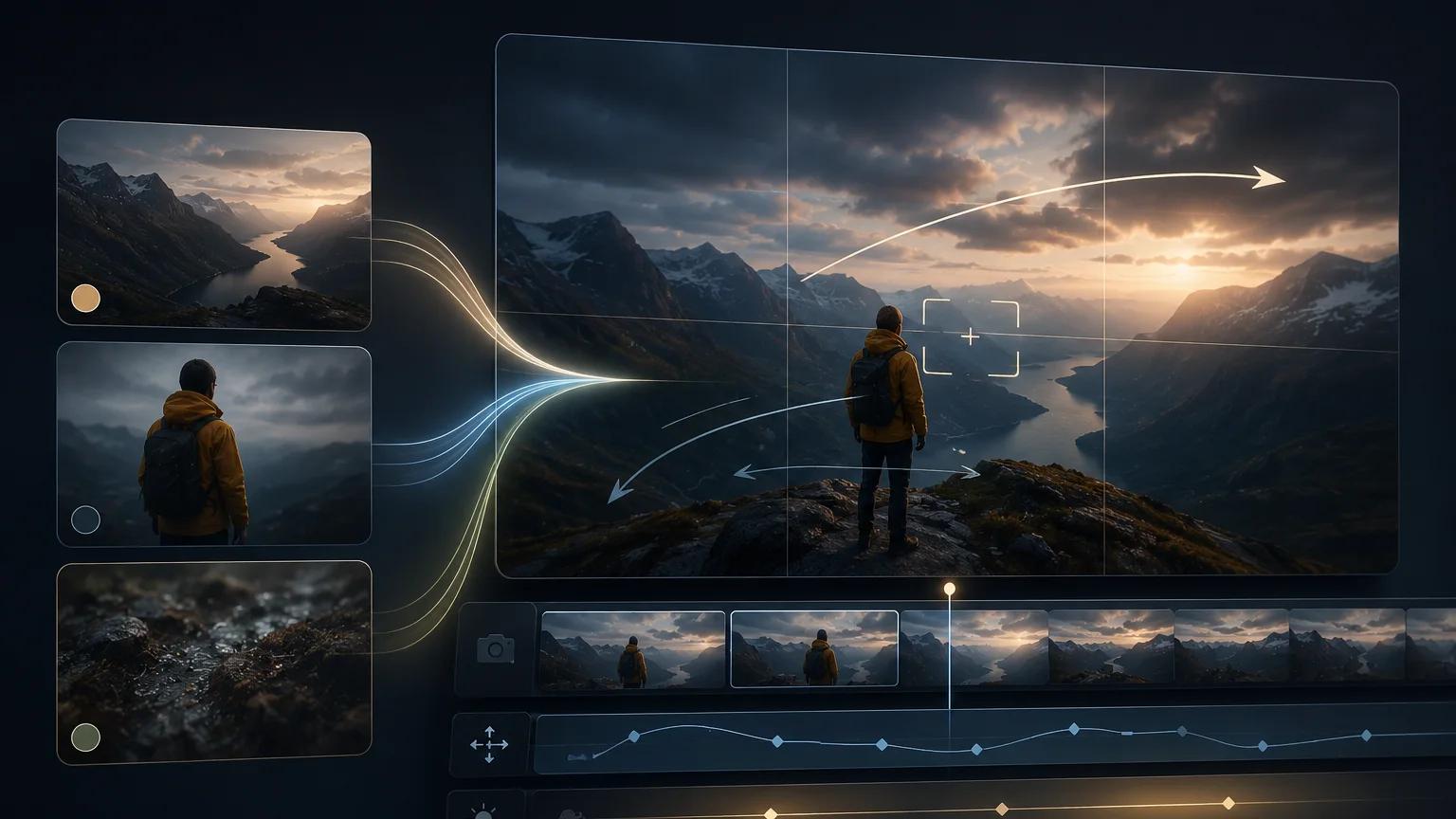
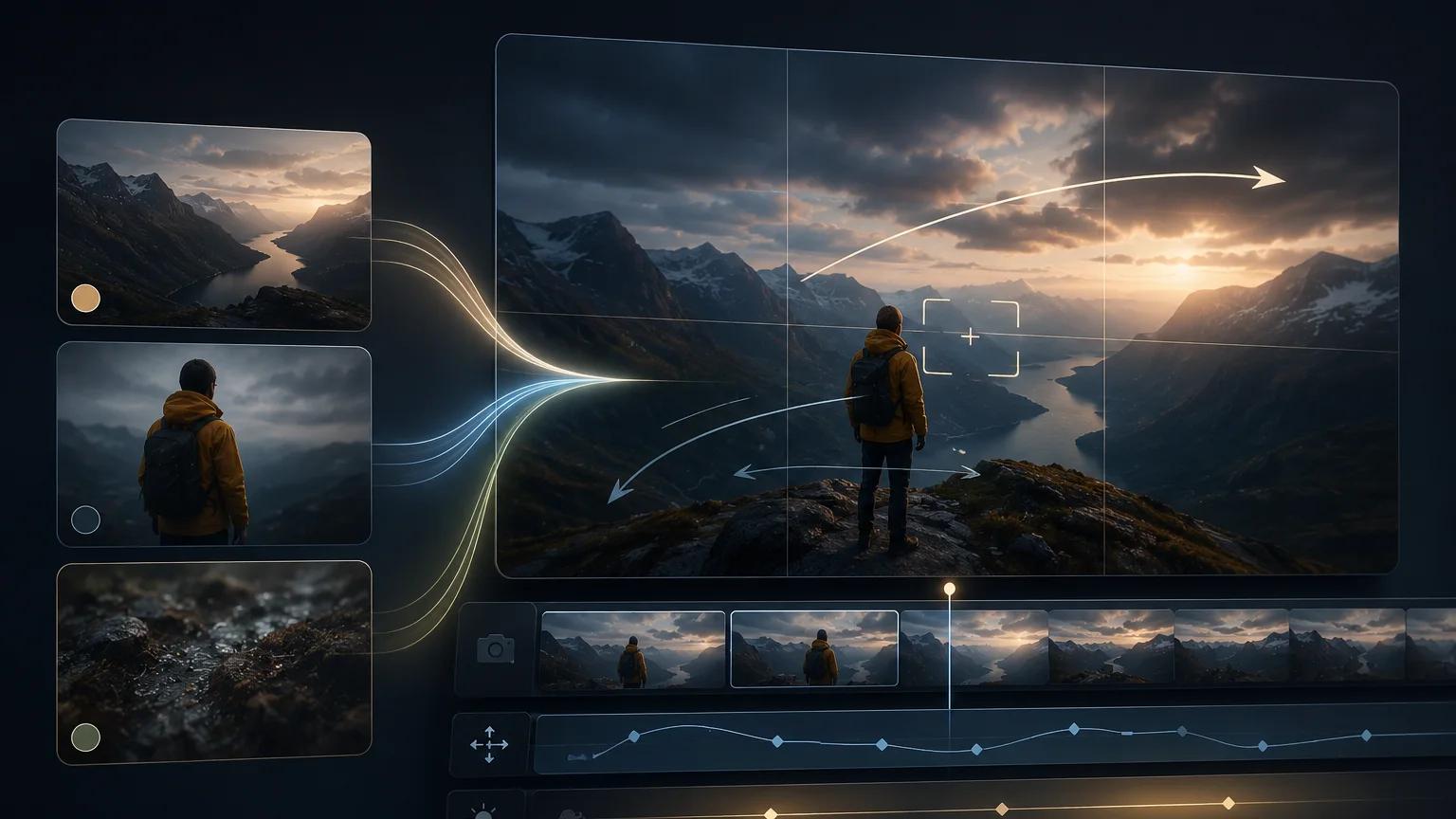
Veo 3.1 is one of the newer models that leans hard on reference images — Google often calls this "Ingredients to Video" — to guide a subject, outfit, product, or environment across shots. It is not a magic switch, and no current model guarantees perfect consistency, but with a repeatable workflow you can get results that hold together well enough for social posts, ads, product demos, and short-form storytelling.
This guide walks through a reference image workflow you can use when preparing Veo 3.1 jobs from ImageToVideoAI. If you want the deeper prompt theory first, keep our AI image to video prompt guide open in another tab.
What "reference image" actually means in Veo 3.1
In practice you are giving the model two kinds of visual anchors:
- A primary image — the frame the video should start from or closely resemble.
- Reference images — extra stills that describe who or what should stay consistent (a face, an outfit, a product, a location) even when the camera moves or the scene changes.
Google's developer documentation describes Veo 3.1 reference images as "ingredients" that can guide the generated video's content, including asset images for a single person, character, or product. Different platforms expose this differently. Some let you upload multiple reference frames. Some accept a single first-frame image plus a text description. Some allow start-and-end frames. Availability of specific reference modes on Veo 3.1 can vary by region and by the platform you access it through, so treat the workflow below as a pattern rather than a fixed UI.
For a broader look at how Veo 3.1 stacks up against Kling, Runway, Hailuo, and Seedance, see our AI image to video generator comparison for 2026 and the current model options on /ai-models.
The five-step reference image workflow
1. Choose the strongest reference frame you have
The model can only preserve what it can clearly see. Before you write a single prompt, audit your source images:
- Face fills a healthy portion of the frame (not tiny, not cropped off).
- Lighting is even — no harsh shadows across half the face or product.
- The subject is roughly centered or clearly the focal point.
- Backgrounds are not so busy that they compete with the subject.
- Resolution is high enough that fine details (fabric texture, logos, eyes) are readable.
If your best image is a low-resolution phone screenshot, upscale it before generation. A clean 1024×1024 reference will almost always beat a noisy 4K one.
2. Decide what needs to stay consistent
Not every element deserves reference weight. Pick the two or three that actually matter for your story:
- Person: face, hair, skin tone, distinctive features.
- Wardrobe: color palette, silhouette, logos, accessories.
- Product: shape, label, color, material finish.
- Environment: room layout, key props, time of day.
Writing this down before you prompt keeps you from asking the model to be consistent about everything at once — which is the fastest way to get generic output.
3. Write a reference-aware prompt
A reference image doesn't remove the need for a good prompt. It changes what the prompt should do. With a strong reference, your prompt should mostly describe motion, camera, and mood — not the subject's appearance, which the reference already carries.
A useful template:
[Subject, briefly named] [action]. [Camera move]. [Environment cue]. [Lighting]. [Mood / style]. Keep the appearance of the subject consistent with the reference image.
Example, for a product clip:
A matte black ceramic mug sits on a linen tabletop, steam rising slowly. Slow dolly-in from the front, ending on a tight shot of the rim. Soft morning window light from the left. Calm, editorial mood. Keep the mug shape, glaze, and logo consistent with the reference image.
Example, for a character clip:
The woman from the reference image walks through an autumn park path, leaves drifting past her. Handheld tracking shot from behind, slight parallax. Golden hour, warm rim light. Cinematic, grounded, no stylization. Keep her face, hair, and jacket consistent with the reference.
Notice what the prompt does not do: it does not re-describe the face, hair color, or outfit in detail. Doing that often fights the reference image and pushes the model toward an average of the two descriptions.
4. Generate a small batch, not a hero clip
Do not spend your budget on one 8-second masterpiece attempt. Generate three or four short clips at a lower duration first, using the same reference image and slightly different prompts:
- Version A — neutral camera, clean framing.
- Version B — one dynamic move (dolly, orbit, or push-in).
- Version C — the same as A but with a different environment cue.
- Version D — the same as B but with a different lighting cue.
Then compare consistency across all four. Whichever variant holds the subject best becomes the base you scale up to a longer clip.
5. Chain clips with a shared reference set
For anything longer than a single generation, you'll usually need to chain multiple clips. The trick is to keep the same reference image set across every clip in the sequence, even when the prompt changes:
- Clip 1: subject walks into the scene.
- Clip 2: subject sits down, picks up the product.
- Clip 3: close-up on the product in their hands.
Each clip uses the same primary character reference plus (if applicable) a product reference. Your prompt varies the action and camera; your references stay locked. This is what actually produces the feeling of one continuous story instead of three unrelated videos.
A quick checklist before you hit generate
- Reference image is high resolution and well-lit.
- You've decided which elements must stay consistent.
- Prompt focuses on motion, camera, and mood, not appearance.
- You're running a small comparison batch, not one expensive attempt.
- The same reference set is reused across every clip in a sequence.
- You have a fallback plan if a specific shot refuses to stay consistent (re-crop, upscale, or switch to a different starting frame).
Common failure modes and quick fixes
Face drifts on longer clips. Shorten the duration, or split the shot into two chained clips with the same reference.
Outfit color shifts. Add one color-anchor phrase to the prompt (e.g., "olive green field jacket") and make sure the reference image clearly shows that color under neutral light.
Product label warps. Move the label further from the extreme edges of the frame in your reference, and prefer camera moves that keep the label in view for the whole clip rather than rotating around it.
Background becomes a different room. Add a short environment cue to the prompt and, if the platform allows, include a second reference image of the environment.
Everything looks generic. You are probably over-describing the subject in text and under-trusting the reference. Delete the appearance sentences and rerun.
Where this fits in a wider stack
A reference image workflow is one lever. Model choice, prompt style, duration, and post-editing all matter too. If you're still deciding between Veo 3.1, Kling, Runway, Hailuo, or Seedance for a specific use case, the 2026 comparison post has the head-to-head notes, and /ai-models shows the current model lineup. When you're ready to actually run generations with your own references, start from /image-to-video and pick Veo 3.1 from the model list.
The goal isn't a perfect one-shot render. It's a repeatable workflow where the third clip looks like it belongs to the same story as the first.
Author
Categories
Why a reference image workflow matters nowWhat "reference image" actually means in Veo 3.1The five-step reference image workflow1. Choose the strongest reference frame you have2. Decide what needs to stay consistent3. Write a reference-aware prompt4. Generate a small batch, not a hero clip5. Chain clips with a shared reference setA quick checklist before you hit generateCommon failure modes and quick fixesWhere this fits in a wider stack
More Posts
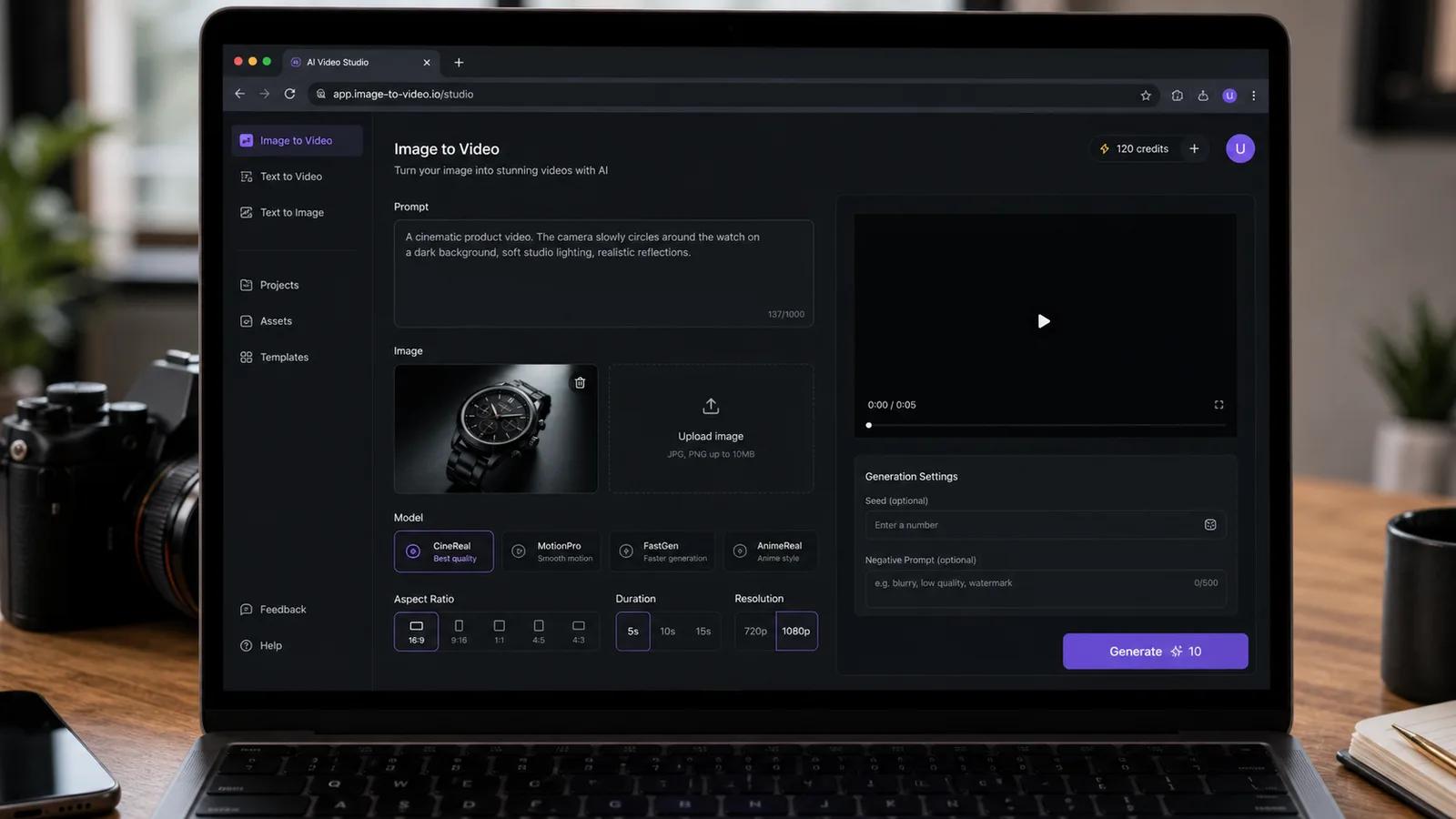
Sådan laver du en TikTok-video af et foto med AI (trin-for-trin 2026)
Forvandl ét stillbillede til et vertikalt 9:16 TikTok- eller Reels-klip med AI. En rigtig gennemgang med skærmbilleder af ImageToVideoAI-arbejdspladsen, plus prompts og tips til opslag.
Food Photo to Video AI: How to Create Reels and TikToks
A practical food photo to video AI workflow: pick the right shot, judge which motions are safe, use copy-paste prompts, and ship a 15-second vertical Reel that still looks like your food.
AI image to video: Kling vs Runway vs Hailuo vs Veo (2026)
Honest 2026 comparison of Kling 3, Runway Gen-4, Hailuo 02, Google Veo, and Seedance — all tested on the same images to show real differences.
Newsletter
Join the community
Subscribe to our newsletter for the latest news and updates