Loading
2026/08/17
AI Portrait Animation From Photo: Subtle Motion Without a Talking Avatar
A practical guide to AI portrait animation from photo: how to prep the image, set a motion budget, write prompts, keep identity, and QA the result.
There are two very different things people mean when they say they want to "animate a portrait."
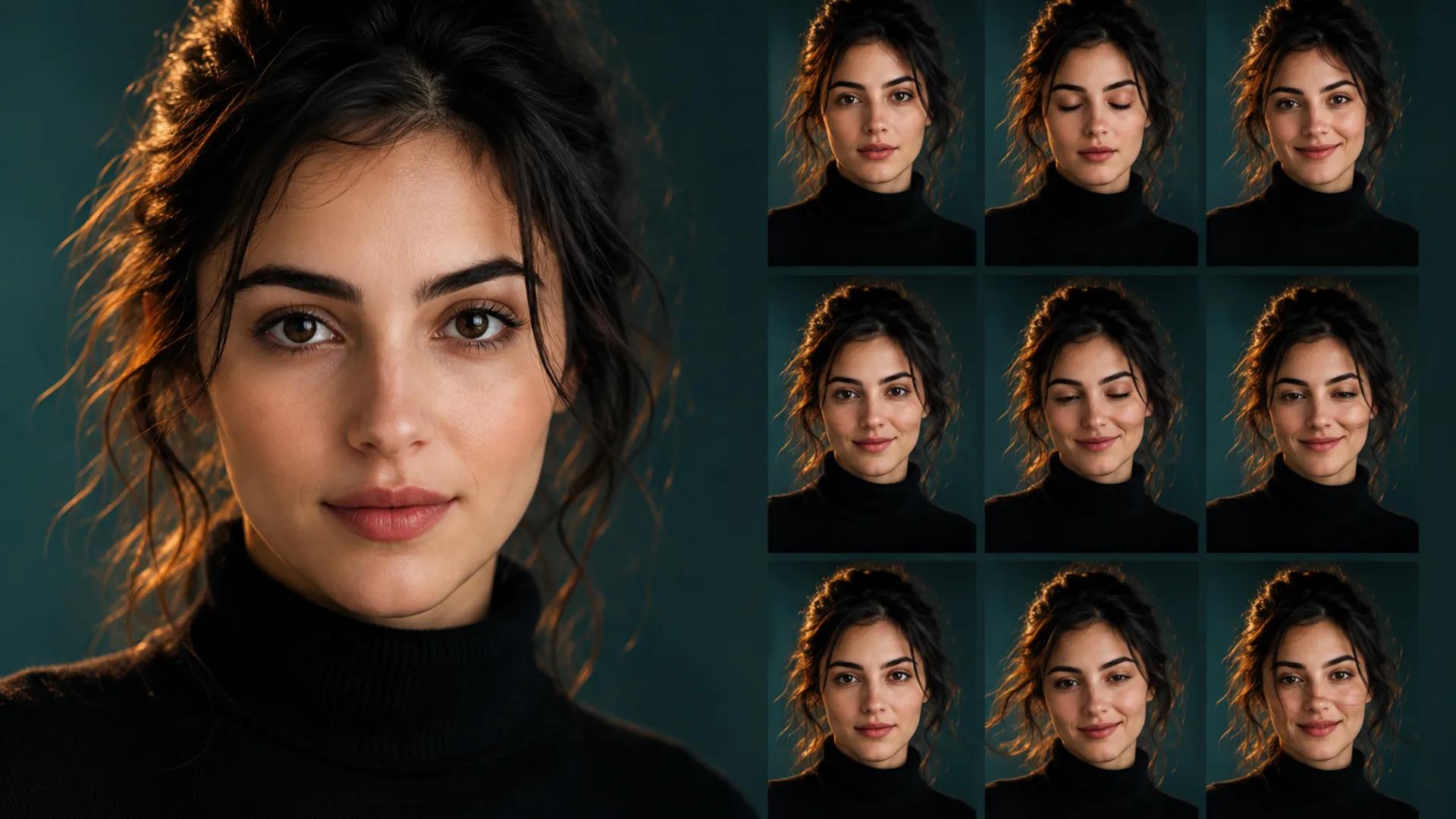
The first is a talking avatar: a face whose mouth moves in sync with an audio track, reading a script. The second is much quieter — a still portrait that starts to feel alive. The subject blinks. Their chest rises. A strand of hair drifts. The camera creeps in maybe two percent. Nobody says a word.
This guide is about the second one. It's the kind of motion that works on a photographer's portfolio, a LinkedIn banner, a memorial slideshow, a book jacket promo, or a founder's About page — places where a talking head would feel intrusive but a frozen headshot feels dated.
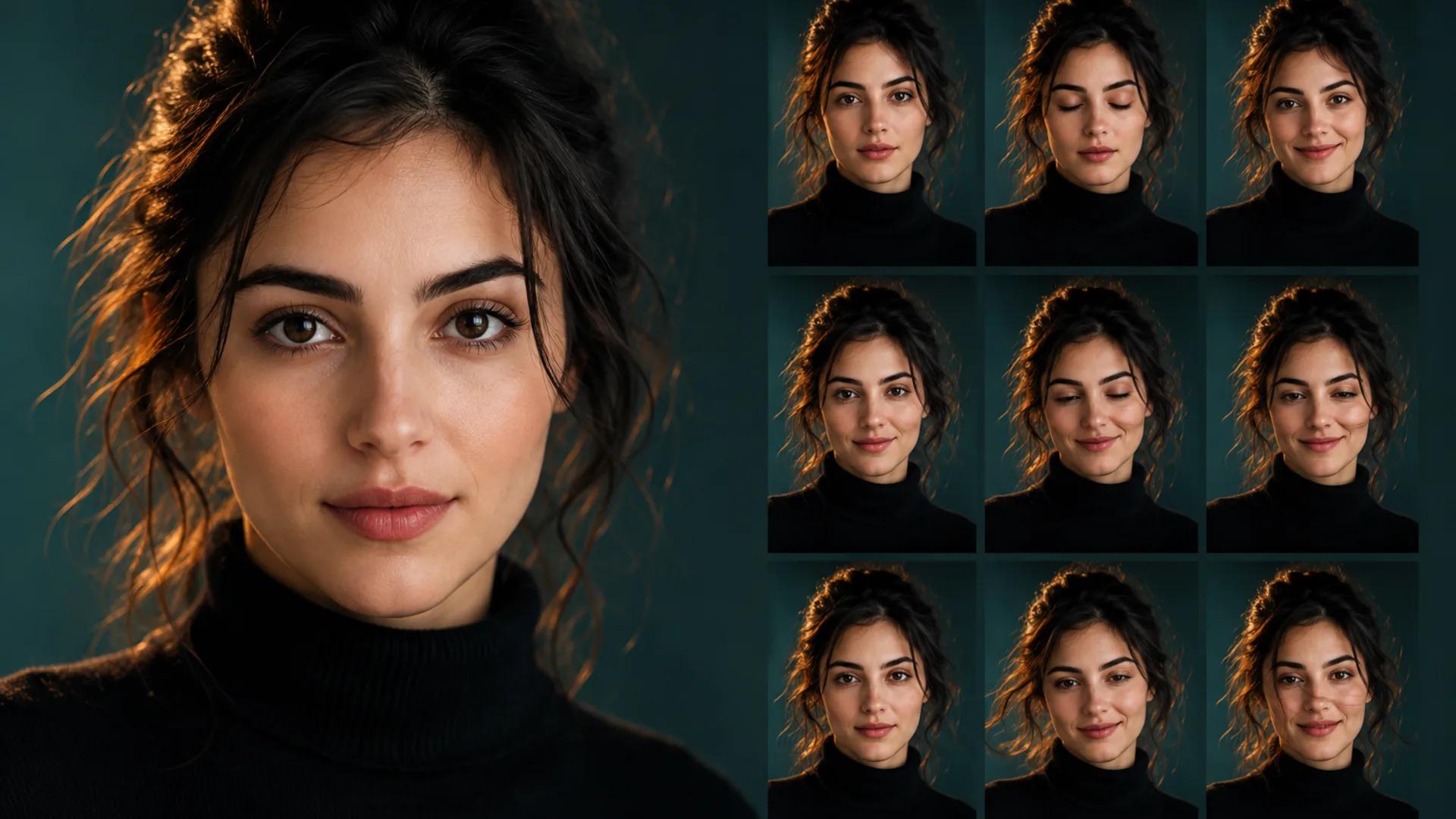
Our AI portrait animation generator is built for exactly this: subtle, believable motion applied to a single portrait. It is not a lip-sync or talking-avatar tool. If you need mouth-synced speech from a script or audio file, that's a separate pipeline with different requirements, and you should plan for it separately rather than expecting a subtle-motion tool to do it. That distinction prevents a mismatch between the tool and the intended result.
Why subtle beats dramatic in portrait work
Faces are the hardest thing for generative video to handle, and the reason is your own brain. You have spent your entire life reading human faces. You detect a wrong blink cadence, an asymmetric mouth twitch, or a jaw that drifts a millimeter off-center instantly, even if you can't name what bothered you.
So the strategy that tends to hold up is restraint. The less you ask the model to change about the face, the less there is to get wrong. A portrait animation that reads as "a photograph that happens to be breathing" survives scrutiny. A portrait animation that tries to turn the head 30 degrees and add a full smile is asking the model to invent geometry and muscle movement it never saw, and that invention is where identity slips.
Think of it as a budget you spend, not a set of features you enable.
Step 1: Choose a portrait that can actually move
Most bad portrait animations were doomed at upload. The source image decides your ceiling.
What helps
- Clean subject-background separation. The model needs to know where the person ends. A subject wearing a dark coat against a dark wall is a recipe for edges that smear.
- Sharp eyes. Eyes are where the eye goes. If the irises are soft or motion-blurred in the original, blinks tend to look mushy.
- Even, directional light. Light that describes the face's structure gives the model volume to work with. Flat on-camera flash gives it a mask.
- Both eyes visible and unobstructed. Hair across one eye, heavy glare on glasses, or a hand near the face all create ambiguity.
- Natural resting expression. A closed-mouth or slightly parted resting expression animates more gracefully than a wide open-mouthed laugh, which locks the model into an unstable starting pose.
- Reasonable resolution with real detail. Upscaled, over-sharpened, or heavily denoised files often produce plasticky skin in motion.
What fights you
- Extreme wide-angle distortion from close phone selfies
- Heavy beauty filters that have already erased skin texture
- Motion blur anywhere on the face
- Busy patterned backgrounds directly behind the head
- Multiple faces in frame when you only want one to move
- Sunglasses or reflective lenses hiding the eyes
- Faces cropped so tightly that there's no headroom for a camera push
If you want a deeper checklist for source selection across all video types, our guide to picking the best image for image-to-video covers it in more detail.
A quick scoring pass
Score your portrait before you spend credits. Give yourself the points honestly.
| Factor | 2 points | 1 point | 0 points |
|---|---|---|---|
| Eye sharpness | Crisp irises and lashes | Slightly soft | Blurred or hidden |
| Subject/background separation | Clear contrast or shallow depth | Some blending | Subject melts into background |
| Lighting | Directional with visible form | Flat but even | Harsh, blown, or muddy |
| Skin texture | Real pores and detail | Light retouching | Heavy filter or plastic |
| Expression stability | Neutral or soft resting face | Mild smile | Wide laugh, mid-speech mouth |
| Framing headroom | Room around head and shoulders | Tight but workable | Cropped at the hairline |
| Obstructions | None near the face | Minor (thin frames) | Hands, glare, hair over eyes |
11–14: strong candidate; start with a restrained test.
7–10: usable, but keep the motion very small and expect to iterate.
Under 7: consider reshooting or choosing another frame. A prompt cannot recover visual information that the source never captured.
Step 2: Set your motion budget
This is the mental model that changes results most. Instead of asking "what can this do," decide in advance how much movement you're willing to spend — then allocate it.
A typical subtle portrait animation has roughly five channels of motion:
- Blink — one or two natural blinks across the clip. The most humanizing single element.
- Breath — a slow rise and fall in the chest and shoulders. Almost invisible, deeply effective.
- Micro-expression — a barely perceptible warming of the eyes, a hint of a smile forming or settling. Emphasis on barely.
- Ambient detail — hair strands, loose fabric, earrings, a scarf. Great for selling realism because it's away from the face.
- Camera — a very slow push in, pull back, or drift. Adds cinematic life without touching the subject at all.
The discipline: pick two or three, not five. A clip with a blink, a breath, and a 2% camera push reads as alive. A clip that tries all five at once usually reads as unstable, because each channel introduces error and errors compound.
A useful rule for personal-brand and professional work: camera plus breath plus blink is the safest trio. Save micro-expression changes for creative or artistic pieces where a little drift won't cost you credibility.
Step 3: Prompt anatomy for portraits
Portrait prompts are structurally different from scene prompts. In a landscape shot, you're describing what happens. In a portrait, you're mostly describing what doesn't happen.
A workable structure:
[Subject and framing] + [permitted motion, small] + [explicit stillness constraints] + [camera behavior] + [mood and light]
The stillness constraints do the heavy lifting. Naming what should stay fixed gives the model boundaries.
Copy-ready prompts
Professional headshot, minimal motion
Professional studio portrait, subject facing camera. Subtle natural
motion only: two slow blinks, gentle breathing in the shoulders.
Head position, jaw, and mouth remain still. No talking, no head
turn. Camera holds steady with an extremely slow push in. Soft key
light from the left, calm and composed mood.
Editorial portrait with ambient movement
Editorial portrait, natural window light. Slow blink, faint breath,
a few loose hair strands drifting as if from a light breeze. Facial
features and expression stay consistent throughout. No mouth
movement, no speech. Camera drifts imperceptibly to the right.
Quiet, contemplative atmosphere.
Warm personal brand portrait
Warm portrait of a person in soft daylight. Motion: one natural
blink, slight breathing, the smallest possible warming of the eyes.
Mouth stays closed and unchanged. Identity, hairline, and
proportions preserved exactly as in the source. Camera static.
Friendly, approachable tone, shallow depth of field.
Memorial or archival portrait, maximum restraint
Vintage portrait photograph, respectful treatment. Only a single
slow blink and the faintest breath. Expression unchanged. No
smiling, no head movement, no mouth movement. Camera completely
still. Preserve original grain, color cast, and photographic
character.
Creative artistic portrait
Stylized portrait with dramatic side lighting. Slow blink, gentle
breath, subtle shift in the catchlights in the eyes. Facial
structure and expression remain fixed. Slow parallax as the camera
eases backward. Moody, cinematic, film-grain texture.
Adapt the vocabulary to your subject, but keep the shape: small permitted motion, explicit constraints, deliberate camera. For broader prompt-writing patterns you can reuse across image-to-video work, see our AI image-to-video prompt guide.
Negative phrasing that earns its place
Not every model exposes a separate negative field, and behavior varies. But including stillness constraints inside the prompt itself is generally worthwhile. Common ones for portraits:
- no talking, no lip movement, no speech
- no head turning or tilting
- no change to facial identity or proportions
- no added or removed accessories
- no warping at the hairline or jaw
- no extra hands or fingers entering frame
Step 4: Protect identity
For personal brands, actors, authors, and professionals, identity preservation isn't a nice-to-have. A portrait that no longer looks like you is worse than no portrait.
Practical safeguards:
- State it in the prompt. "Preserve facial identity and proportions exactly" is a cheap instruction with real value.
- Keep clips short. Drift accumulates over time. A brief clip that loops beats a long one that slowly becomes someone else.
- Avoid asking for expression changes. Going from neutral to a full smile requires the model to reconstruct cheeks, eyes, and mouth. That's where faces go sideways.
- Compare first and last frames. Export both, put them side by side, and look at eye spacing, nose width, jawline, and hairline. If frame one and the final frame are the same person, you're fine.
- Watch the teeth. If the mouth opens at all, teeth are a frequent failure point since they may not exist in the source at all.
Step 5: Aspect ratio and framing
Decide the output shape before you generate, not after.
- Vertical for Reels, Shorts, TikTok, and Stories. Leave headroom, and remember that platform UI overlays eat the top and bottom.
- Square for feed posts and profile-adjacent placements.
- Horizontal for websites, About pages, YouTube, and presentation decks.
Cropping a horizontal portrait animation into vertical after the fact usually means slicing off the shoulders or the top of the head, which destroys the framing you paid for. Generate in the target ratio when you can. Our aspect ratio and safe zone guide walks through where to keep the face clear of overlays for each platform.
One portrait-specific note: if you're planning a camera push, factor in that the push crops in as it moves. Start looser than your final composition so the end of the move lands where you want it.
The talking-avatar question, answered plainly
Let's be direct about this, because it saves everyone time.
The AI portrait animation generator produces subtle motion — blinks, breath, micro-movement, ambient detail, camera work. It is not designed to sync a mouth to speech. It's not a lip-sync tool, and it isn't a talking-avatar builder.
If your project genuinely requires a face that speaks a script — a training module narrator, a spokesperson video, a multilingual explainer — that is a different category of tool with different inputs (a script or audio track, phoneme-level mouth mapping, sometimes voice cloning) and different considerations around consent and disclosure. Plan that as its own workflow. Don't try to coax speech out of a subtle-motion tool; you'll get mouth artifacts, not dialogue.
Also worth saying: subtle motion can be the better creative choice even when a separate talking-avatar workflow is available. A breathing portrait behind a voiceover keeps attention on the narration without asking the generated mouth to carry the performance.
Settings, models, and credits: check before you generate
Available models, maximum durations, output resolutions, supported aspect ratios, and audio options change over time, and different models behave differently on faces. Some handle skin and eyes gracefully; others are tuned for scenes and landscapes and will treat a portrait as just another image.
Before you commit a batch:
- Open the generator and read the current controls rather than assuming what they were last month
- Check the credit cost for your chosen model, duration, and resolution combination
- Confirm which aspect ratios the model actually supports
- Note whether audio is part of the output or something you add later
- Run one short test on your best portrait before generating a set
Generative models are probabilistic. The same image and prompt can produce different results on different runs. Treat your first generation as a draft, budget for a few iterations, and don't plan a client deadline around getting it right on attempt one.
Step 6: QA by sampling frames
Playing the clip at full speed hides problems. Your eye smooths over a two-frame glitch that a viewer scrubbing on a phone will catch.
A frame-sampling pass:
- First frame. Does it match the source portrait? Some pipelines drift immediately.
- Around 25%. Check the eyes mid-blink. Half-closed lids are where warping shows.
- Midpoint. Look at the jawline, hairline, and shoulder edges against the background.
- Around 75%. Check hands, jewelry, collars, glasses frames — the small hard-edged objects.
- Final frame. Compare directly to the first. Same person? Same proportions?
What to look for specifically on portraits:
- Eyes that don't blink together, or blink at an unnatural speed
- Pupils that drift or resize oddly
- Mouth corners twitching when you asked for no mouth movement
- The hairline shifting or hair "growing" into the forehead
- Ears changing shape, a classic identity tell
- Glasses frames bending or the lenses losing their reflection logic
- Background lines warping near the head
- Shoulders that inflate or deflate rather than breathe
If you hit consistent artifacts, our AI video artifact troubleshooting guide covers systematic fixes across generation types.
Troubleshooting: symptom to fix
The face no longer looks like the subject. Shorten the clip. Remove any expression-change request. Add explicit identity-preservation language. Regenerate — variance between runs is normal.
The mouth moves even though I asked it not to. Strengthen the constraint ("mouth closed and completely still, no speech"), reduce overall motion intensity, and check whether your source image had a mid-speech or open-mouth expression that predisposed the model toward mouth movement.
Blinks look wrong or lids smear. Usually a source problem: soft or partially obscured eyes. Try a sharper frame. If the source is fine, lower motion intensity so the blink is slower and simpler.
Skin looks like plastic or wax. The source was probably over-retouched or heavily denoised. Use a less-processed version of the photo. Prompting for "natural skin texture, visible pores" sometimes helps but can't restore detail that was destroyed.
Hair smears into the background. Low subject-background contrast. Pick a portrait with better separation, or drop the ambient-hair channel from your motion budget entirely.
Glasses warp or lenses flicker. Reduce head motion to zero, cut the camera move, and keep the clip short. Glasses are geometrically unforgiving.
Background objects bend near the head. Choose a simpler background, or reduce the camera movement that's causing parallax the model can't resolve.
Everything is too subtle to notice. Add one channel, not three. Usually camera motion is the safest addition — it reads as intentional without touching the face.
Accessibility
Portrait animations are quiet, but they still need to be usable.
- Provide alt text or a caption describing the subject and the fact that the image is subtly animated. "Animated portrait of Maria Chen, blinking slowly against a soft grey background" tells a screen reader user what's there.
- Respect motion sensitivity. Slow, small movement is far gentler than fast pans, but on the web, consider honoring reduced-motion preferences by serving a still fallback.
- Don't loop aggressively. A portrait that blinks every 1.5 seconds forever becomes distracting in a sidebar. Longer gaps between motion beats are kinder.
- Avoid autoplay in dense layouts. Multiple animated faces on one page compete for attention and can feel overwhelming.
- Keep contrast intact. If you're overlaying text on the animation, check that the text stays readable across the whole clip, not just the first frame.
Consent, memorial work, and honest labeling
This section matters more than the technique.
Get consent. Animating someone's face without permission is a problem regardless of how subtle the motion is. For clients, put it in writing: what will be animated, where it will appear, for how long. For employees or team headshots on a company site, ask individually. "It's just a blink" is not consent.
Recruiters and internal teams: be careful about animating candidate or staff photos. What reads as modern to you may read as unsettling or manipulative to the person in the picture. Ask first, and make opting out genuinely easy.
Memorial and family work deserves extra care. Animating a photograph of someone who has died can be deeply meaningful — many families find it comforting to see a still image breathe again. It can also be distressing, and reactions within a single family vary enormously.
Practical guidance:
- Involve close family before creating anything, and let them decide
- Choose the most restrained motion possible: a blink and a breath, nothing more
- Never invent an expression the person didn't have in the photo. No adding smiles.
- Never fabricate speech or words. This is where the talking-avatar distinction becomes an ethical line, not just a technical one.
- Preserve the photograph's original character — its grain, its color cast, its age
- Show it privately first, and be ready to accept "no"
- Keep the original untouched file safe and separate
Label it. When an animated portrait appears publicly, say that it's AI-animated. A short credit line costs nothing and protects your credibility. Audiences forgive disclosed enhancement; they don't forgive discovering it themselves.
FAQ
What's the difference between AI portrait animation and a talking avatar? Portrait animation adds subtle life — blinks, breath, hair movement, camera drift — while keeping the face essentially as photographed. A talking avatar synchronizes mouth movement to audio or a script. Our portrait animation generator does the former, not the latter. Mouth-synced speech is a separate pipeline.
How long should a portrait animation be? Short. Brief clips keep identity stable and loop cleanly. Available durations depend on the model you choose, so check the current options in the generator.
Can I animate an old scanned photograph? Often yes, if the eyes are reasonably defined and the scan isn't badly damaged. Keep motion minimal and preserve the original grain rather than trying to modernize the look.
Will it work with glasses? Sometimes. Glasses are prone to warping, so reduce head and camera motion and inspect the frames closely. Non-reflective lenses fare better than glare-heavy ones.
What if the subject is wearing a hat or has unusual hair? Hard edges like hat brims can bend under camera motion. Test with static camera first, then add movement only if the first result holds.
Can I animate two people in one photo? It's possible but harder — the model may animate them inconsistently or blend features between them. Single-subject portraits are more reliable.
How many credits will this cost? It depends on the model, duration, and resolution you select. Check the current pricing shown in the generator before running a batch.
Can I get the exact same result twice? No. These models are probabilistic and outputs vary between runs. Save the versions you like as you go.
A workflow you can reuse
- Pick three candidate portraits and score them with the table above
- Decide your motion budget — pick two or three channels, no more
- Choose your output aspect ratio before generating
- Check the current model options and credit cost in the generator
- Write a prompt with explicit stillness constraints
- Generate one short test on your strongest portrait
- Sample five frames and compare first to last
- Iterate on the prompt, not the source, unless the source is the problem
- Add alt text and an AI-animated label
- Confirm consent before anything goes public
Effective portrait animations do not need to announce themselves. Someone may pause because the photograph feels present, not because something moved dramatically. That effect comes from restraint: a good source image, a tight motion budget, and the willingness to iterate until the person in the frame is still unmistakably themselves.
Start with one portrait in the portrait animation generator, keep the movement smaller than feels right, and let the subtlety do the work.
Author
Categories
Why subtle beats dramatic in portrait workStep 1: Choose a portrait that can actually moveWhat helpsWhat fights youA quick scoring passStep 2: Set your motion budgetStep 3: Prompt anatomy for portraitsCopy-ready promptsNegative phrasing that earns its placeStep 4: Protect identityStep 5: Aspect ratio and framingThe talking-avatar question, answered plainlySettings, models, and credits: check before you generateStep 6: QA by sampling framesTroubleshooting: symptom to fixAccessibilityConsent, memorial work, and honest labelingFAQA workflow you can reuse
More Posts
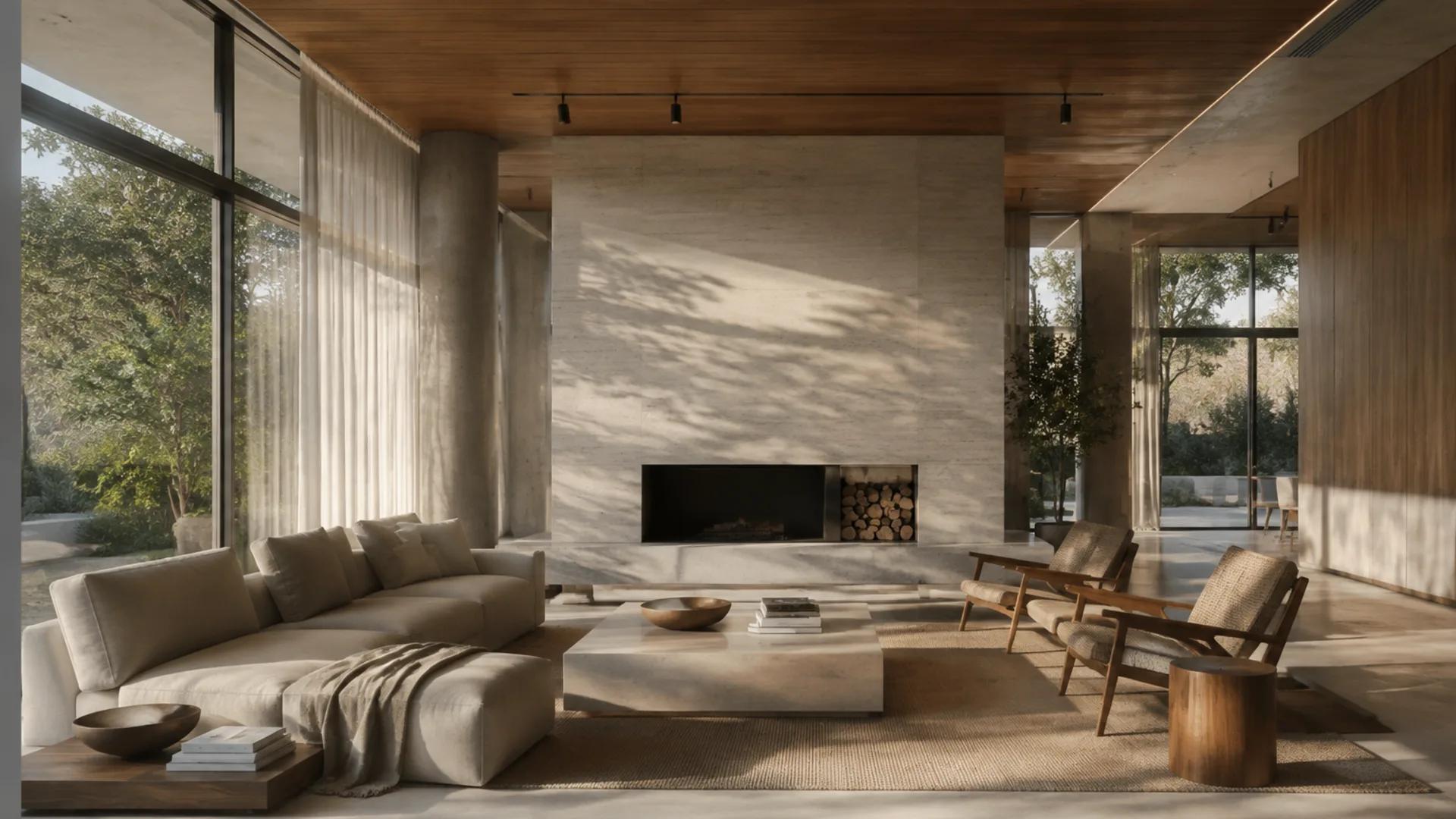
Architecture Render to Video AI: A Practical Workflow
Turn a single architectural render into a walkthrough video with AI. A practical workflow for architects, interior designers, and archviz teams.
First and Last Frame AI Video: A Practical Guide to Start and End Frame Control
How to plan, prompt, and troubleshoot first and last frame AI video, with copy-ready templates, a shot planning table, and a QA checklist for reliable start-to-end results.
AI Video Aspect Ratio Guide: Safe Zones for Reels, Shorts, and Widescreen
A practical guide to AI video aspect ratios, safe zones, and reframing for TikTok, Reels, Shorts, feeds, and widescreen delivery.
Newsletter
Join the community
Subscribe to our newsletter for the latest news and updates