Loading
2026/05/04
Animate old photos & make AI hug videos: 2026 guide
A current, screenshot-based guide to animating old photos and creating AI hug videos with ImageToVideoAI's real workspace.
Updated for the current workspace
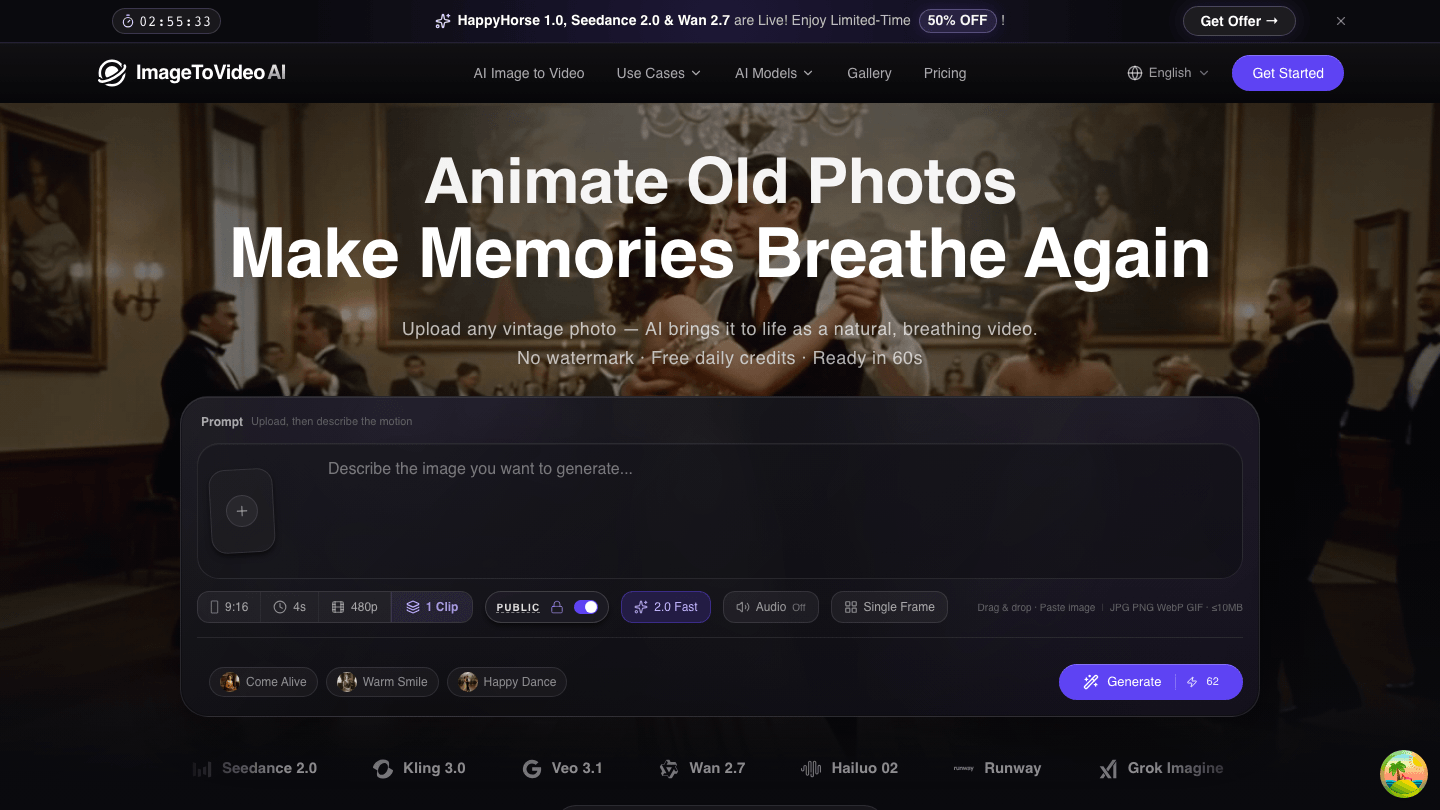
Old photo animation and AI hug videos are no longer a vague upload-and-wait workflow. ImageToVideoAI now puts the upload slot, prompt, aspect ratio, duration, resolution, clip count, model choice, style presets, visibility control, and live credit cost in one workspace.
The screenshots below are from the current rendered product pages, not a concept mockup.
Part 1: Animate old photos
What works well
Use the Animate Old Photos page for:
- Vintage portraits, parents' old photos, childhood photos
- Wedding photos, graduation photos, family pictures
- Black-and-white images, faded scans, low-resolution photos with a clear subject
- Historical portraits, retro illustrations, or old posters
Clear faces and a visible main subject matter more than perfect image quality. The AI can handle grain and faded color, but blocked faces or tiny subjects are harder to keep consistent.
Current step-by-step workflow
Step 1: Open the dedicated page
Go to Animate Old Photos. This is a scenario workspace with old-photo presets, not a generic blank editor.
Step 2: Upload or paste an image
Click the plus button in the upload slot, drag an image in, or paste directly from your clipboard. This is useful when you are copying from a photo library, chat app, or scanning tool.
The workspace supports common image formats including JPG, PNG, WebP, GIF, and HEIC. Your uploaded image stays in the workspace while you refine the prompt and regenerate.
Step 3: Set the parameters
The current workspace exposes the practical controls before generation:
| Control | What it does | Practical advice |
|---|---|---|
| Aspect ratio | 9:16, square, or landscape | Use 9:16 for TikTok/Reels; use landscape for family archive videos |
| Duration | 4s, 5s, and other options | Short old-photo clips are usually more stable |
| Resolution | 480p / 720p / 1080p depending on model | Test motion cheaply first, then render the final version higher |
| Clip count | Generate multiple variations | Useful when you want to pick the best expression |
| Model | Seedance, Kling, Veo, Wan, Hailuo, Runway, Grok, and more | Try Kling for faces; Seedance or Wan for camera motion |
| Visibility | Public/private generation control | Check this before using sensitive memorial photos |
Credit cost is shown on the Generate button and changes with model, duration, resolution, and clip count. Do not rely on older fixed-cost tutorials; the button is the current source of truth.
Step 4: Start with a preset
The old-photo page currently includes three useful presets:
| Preset | Best for | Motion direction |
|---|---|---|
| Come Alive | Classic portraits and family photos | Natural breathing, subtle push-in |
| Warm Smile | Single-person close-ups | Gentle smile, warmer emotional tone |
| Happy Dance | Social and playful edits | More expressive motion |
Good prompts:
Subtle breathing, warm smile, looking at camera, vintage film textureSlow push-in, natural eyes, nostalgic warm lightingBring the old photo to life while preserving identity and facial features
Why this dedicated page is stronger
- No editing software needed: upload, choose a preset, generate.
- Multiple models in one place: compare outputs without re-uploading elsewhere.
- Failed generations refund credits: practical for prompt iteration.
- Watermark-free MP4 output: usable for family videos, memorial edits, and social posts.
- Live settings before generation: ratio, duration, quality, clips, and credit cost are visible upfront.
Part 2: AI hug videos
AI hug videos are useful for long-distance relationships, family reunion edits, memorial videos, anniversaries, friend reunions, and "meet your younger self" clips.
Two input modes
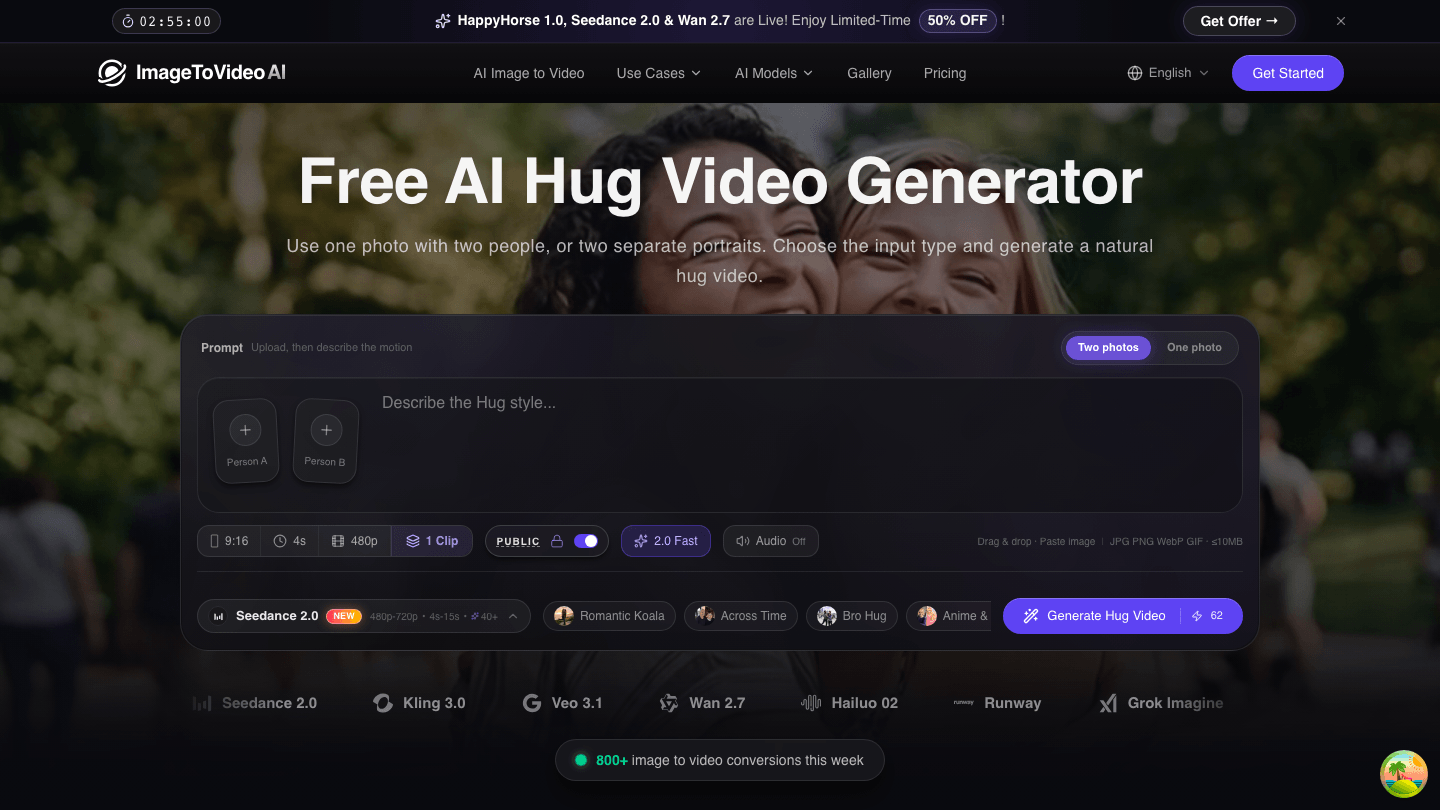
Open AI Hug Video Generator and choose:
- Two Photos: upload Person A and Person B separately when the two people are not in one image.
- One Photo: upload an existing two-person photo and animate it into a hug.
Important: Two Photos mode is not a start-frame/end-frame workflow. The two uploads are person references used to create one hug scene.
Recommended workflow
Step 1: Choose the input type
Use One Photo if both people are already in frame. Use Two Photos if they were never photographed together.
For Two Photos, try to match:
- Upper-body framing
- Similar lighting direction
- Similar camera angle
- Clear faces
- Minimal heavy filters or compression
Step 2: Choose a hug style
Current presets include:
| Style | Best for |
|---|---|
| Romantic Koala | Couples, weddings, anniversaries |
| Across Time | Family, memorial, childhood-and-present edits |
| Bro Hug | Friends, siblings, casual social content |
| Anime & Pet | Character, pet, and creative crossover videos |
For more control, write the emotion and action directly:
Two people warmly reunite at sunset, slowly step closer, and gently hug. Cinematic camera, natural expressions, emotional but restrained.
Step 3: Generate, preview, refine
Generation usually takes about 60-120 seconds depending on model settings and queue load. If the hug looks unnatural:
- Use clearer photos with closer angles.
- Write a more specific action such as "gentle hug" or "warm reunion."
- Test with shorter/lower settings before rendering a final high-quality version.
Which page should you use?
| Goal | Best page | Why |
|---|---|---|
| Make an old portrait breathe, blink, or smile | Animate Old Photos | Presets are tuned for controlled old-photo motion |
| Create a two-person hug or reunion | AI Hug Video Generator | Supports both one-photo and two-photo inputs |
| Animate a general image | Image to Video | Better for landscapes, products, creative visuals |
Start here
If you have one old photo, start with Animate Old Photos. If you want two people to embrace, use AI Hug Video Generator.
The main advantage of the current workspace is transparency: upload, prompt, model, ratio, resolution, clip count, visibility, and credit cost are all visible before you generate. Test a cheaper draft first, then render the best version as your final video.
Author

Categories
Updated for the current workspacePart 1: Animate old photosWhat works wellCurrent step-by-step workflowStep 1: Open the dedicated pageStep 2: Upload or paste an imageStep 3: Set the parametersStep 4: Start with a presetWhy this dedicated page is strongerPart 2: AI hug videosTwo input modesRecommended workflowStep 1: Choose the input typeStep 2: Choose a hug styleStep 3: Generate, preview, refineWhich page should you use?Start here
More Posts
Veo 3.1 reference image workflow: keep subjects consistent across clips
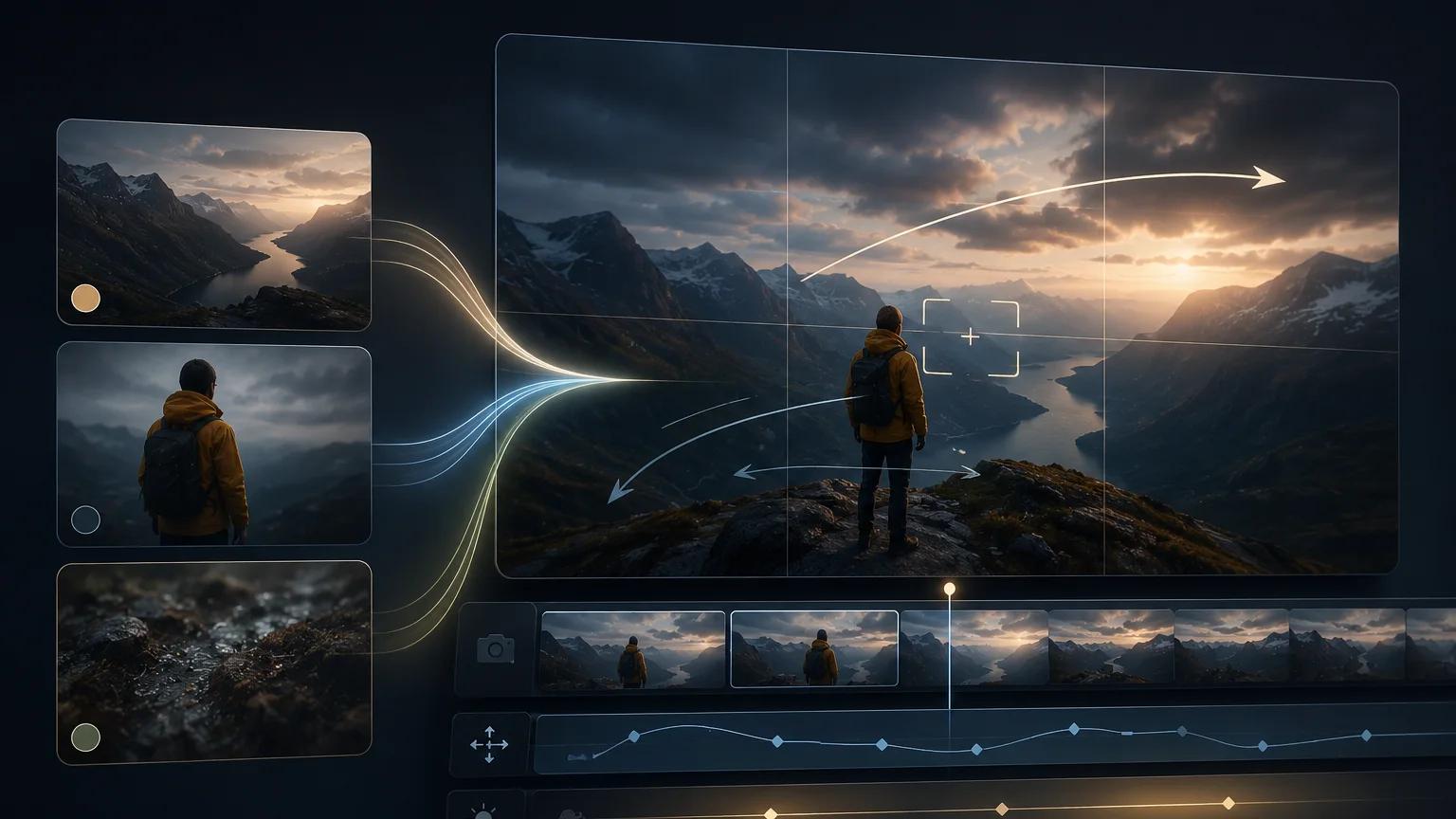
A practical Veo 3.1 reference image workflow for image-to-video creators — how to pick reference frames, write prompts, and stack clips without losing your subject.

Product photo to video ads: ecommerce AI guide (2026)
Turn one product image into TikTok Shop, Amazon, Shopify, and Meta video creatives with real screenshots, prompt templates, and an actionable workflow.
Food Photo to Video AI: How to Create Reels and TikToks
A practical food photo to video AI workflow: pick the right shot, judge which motions are safe, use copy-paste prompts, and ship a 15-second vertical Reel that still looks like your food.
Newsletter
Join the community
Subscribe to our newsletter for the latest news and updates