Loading
2026/07/13
How to Animate a Logo With AI From a Static Image (2026 Guide)
A practical workflow to animate a logo with AI from a static image: prep the file, write restrained reveal prompts, QA brand accuracy, and export a clean intro clip.
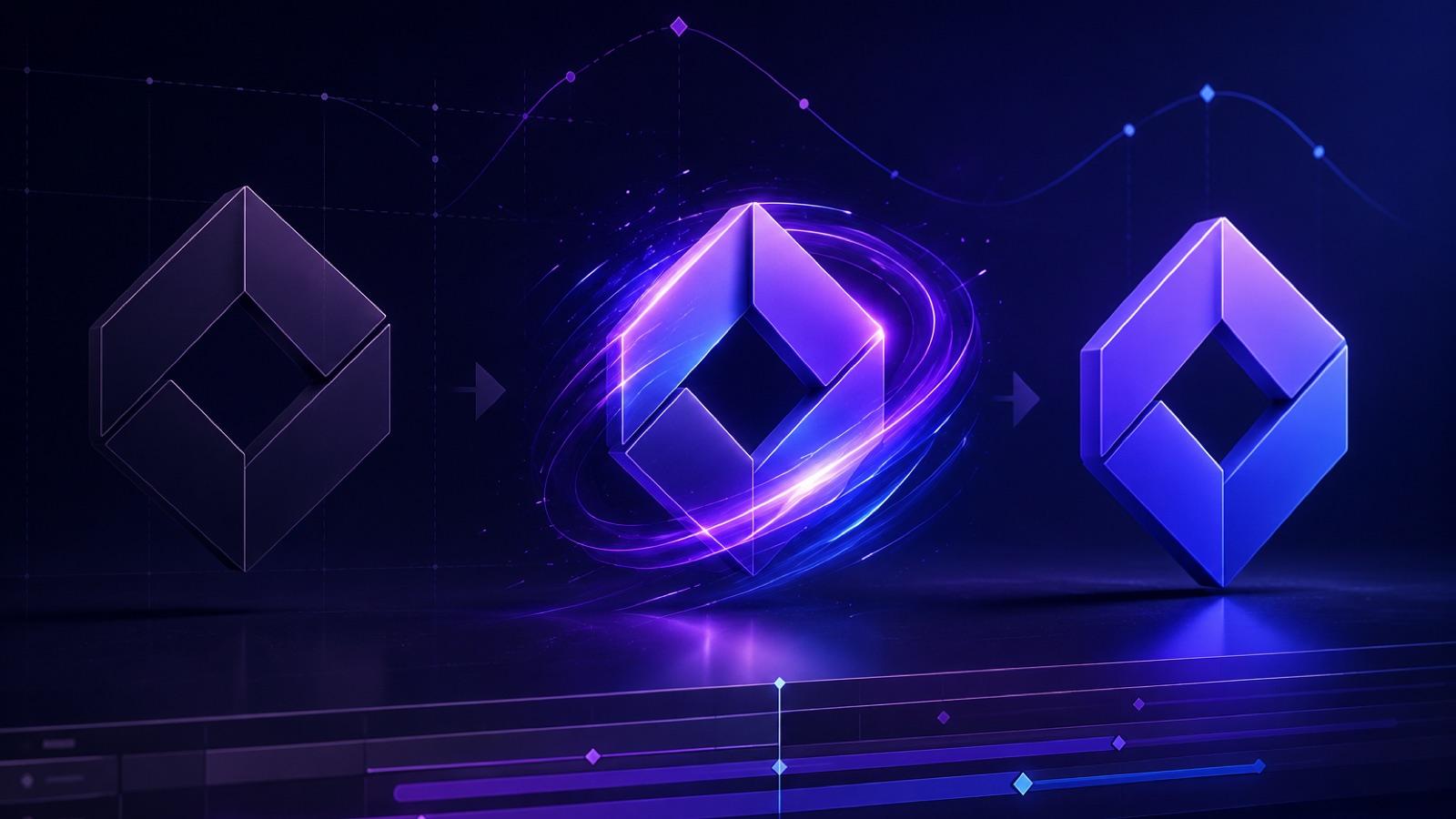
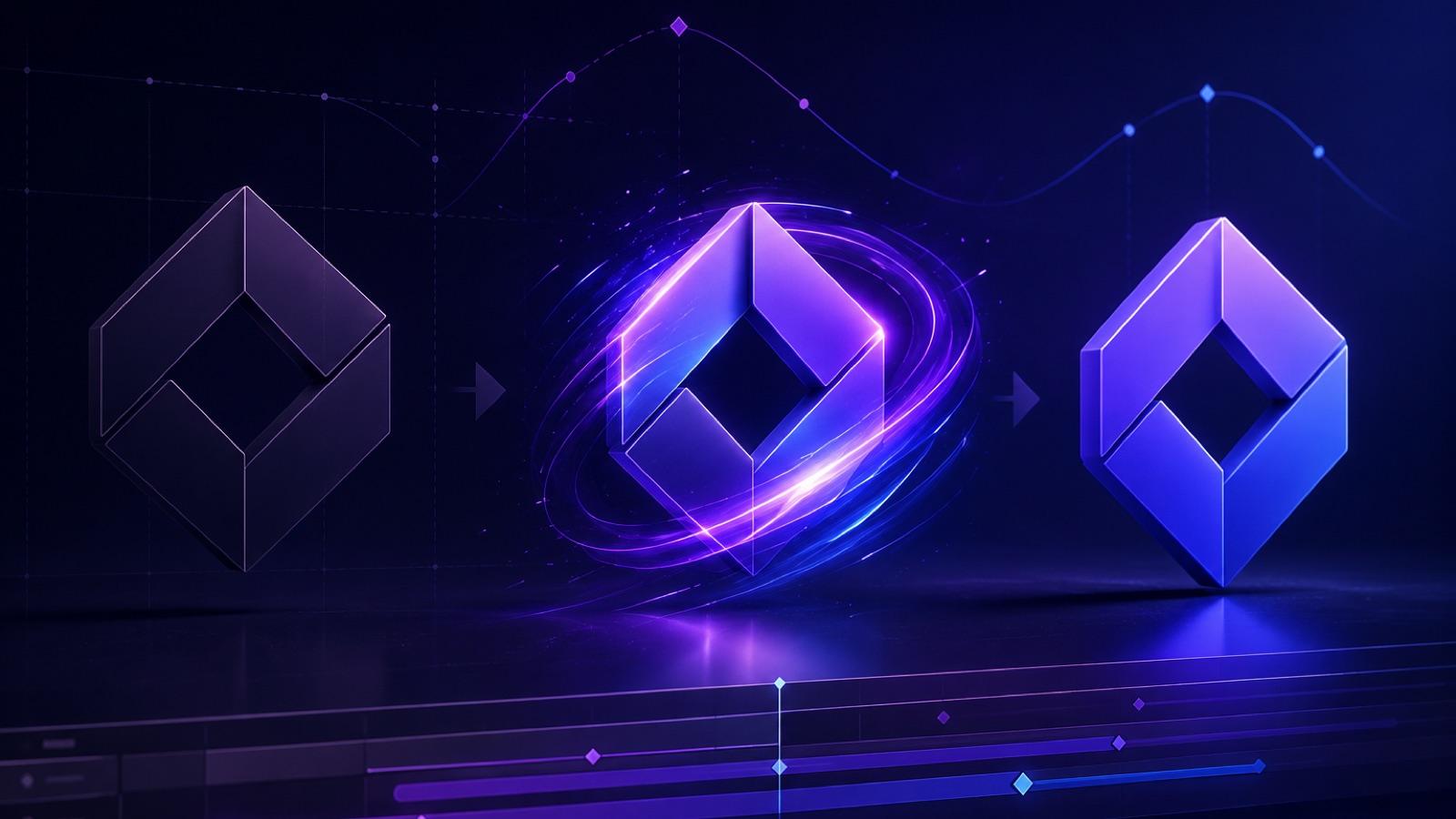
A logo intro used to mean a motion designer, a project file, and a week of revisions. In 2026 you can animate a logo with AI from a single static image in an afternoon — if you treat the model with respect. Image-to-video models are powerful, but they are also raster-based generators that can warp letters, thin strokes, symmetry, and brand color if you push them too hard. The winning approach is restraint: generate motion around or behind a stable mark, keep clips short, and re-overlay the exact vector or master raster logo in an external editor when identity has to be pixel-perfect.
This guide walks through the full workflow we use at ImageToVideoAI for AI logo animation from a static image — source prep, prompt recipes for five restrained reveal styles, a QA checklist, common failure modes, and export guidance for YouTube, podcasts, apps, and websites.
Why "animate logo with AI" is different from generating any other clip
A product shot, a character, a landscape — the viewer has no ground truth. If the AI invents a leaf or shifts a shadow, nobody notices. A logo is the opposite. Your audience has seen it a hundred times. A single warped letter, a misaligned counter in an "O," or a color that drifts two shades toward cyan reads instantly as "off-brand."
Runway's official Image-to-Video Prompting Guide puts the principle plainly: the source image defines composition, and the prompt should focus on motion. For logos, that principle becomes a rule. The image is the logo. The prompt should describe how light, camera, atmosphere, or background moves — not how the mark itself deforms. Everything downstream in this guide is a consequence of that idea.
Step 1 — Prepare the source image
The single biggest lever on final quality is the input file. Spend fifteen minutes here and save an hour of re-rolls.
Source-file preparation table
| Element | Recommended | Why it matters |
|---|---|---|
| Canvas | 1920×1080 or 1080×1920, matching final aspect | Avoids upscaling artifacts and later crops that clip the mark |
| Logo scale | 40–60% of the shortest edge | Leaves room for camera drift and light without cropping letters |
| Position | Center or rule-of-thirds, safe margin ≥ 10% | Keeps the mark inside frame during subtle push-ins |
| Background | Solid brand color, subtle gradient, or plain studio black/white | Reduces competing detail the model might animate incorrectly |
| Contrast | High separation between mark and background | Helps the model "understand" what to protect |
| Fine lines | Simplify or thicken extremely fine strokes when brand guidelines allow | Fine detail is more likely to shimmer or disappear during motion |
| File format | High-quality PNG or JPG, sRGB | Predictable color; avoid banking on alpha (see below) |
On transparent PNGs. A transparent source can still be useful for later compositing, but do not assume the generated video will preserve that alpha channel. Unless the selected model and export explicitly confirm alpha support, plan for an opaque clip and key, mask, or re-overlay the logo in an external editor. A solid brand background is often the simpler production choice.
Step 2 — Choose a restrained reveal style
Five styles cover most brand needs. Each one animates the environment, not the letters.
Copy-paste prompt recipes
1. Light sweep (studio product-shot feel)
Cinematic studio scene, the logo remains perfectly still and centered, a soft volumetric light ray slowly sweeps left to right across the surface, subtle dust particles drifting in the beam, gentle contrast breathing, no camera movement, no deformation of the logo, 4-second clip.
2. Slow push-in (confident, editorial)
The logo is stationary and centered on a matte background, extremely slow cinematic push-in over 4 seconds, shallow depth of field forming behind the mark, atmospheric haze thickening slightly, letters and shapes remain unchanged, no rotation, no warping.
3. Particle settle (tech / SaaS launch feel)
Fine luminous particles drift into frame from the edges and settle behind the logo, forming a soft glowing halo, the logo itself stays completely stable and sharp, no distortion of letters, gentle bokeh, dark neutral background, 4-second loop-friendly clip.
4. Liquid ink background (editorial, agency, podcast)
The logo remains perfectly still in the center, behind it a slow bloom of dark ink diffusing through water in the brand color, soft caustics on the surface, no ripples touching the mark, no deformation of letters or shapes, cinematic 24fps look.
5. Ambient parallax (website hero background)
Static logo centered, background layers drift with slow parallax — distant soft clouds or geometric shapes moving at different speeds, faint volumetric light, the logo does not move, scale, or deform, 6-second seamless clip.
Use one of these as the motion prompt in ImageToVideoAI with your prepared logo image as the source. For deeper prompt patterns and modifiers, our AI image-to-video prompts guide has the vocabulary; for restrained camera language specifically, see the AI video camera movements guide.
Step 3 — The numbered workflow
- Lock the source. Export the logo at final resolution on the background you want the AI to animate. Save a second copy of the pure vector or high-res raster logo — you may re-overlay it later.
- Pick one reveal style. Do not combine light sweep + push-in + particles in a single prompt. One dominant motion at a time.
- Generate a short clip. Keep it 3–6 seconds. Longer clips give the model more room to drift the mark.
- Compare frame 1 and the last frame side by side. Zoom to 200%. Look at every letter, every counter, every corner.
- If the mark drifted, re-roll with a stronger "logo remains still, no deformation" clause, or reduce motion strength if your tool exposes it.
- If pixel-perfect identity is mandatory, re-overlay. Take the master logo file and layer it on top of the AI clip in your editor (After Effects, DaVinci Resolve, Premiere, Final Cut, CapCut). The AI clip provides the motion and atmosphere; the overlay guarantees identity.
- Add audio in the editor. ImageToVideoAI generates the visual motion clip; exact audio timing — a whoosh landing on the light sweep, a sub-bass hit on the settle — belongs in your NLE.
- Export at the right spec (see below).
Step 4 — Brand-accuracy QA checklist
Run this before you ship. If anything fails, either re-roll or re-overlay.
- Letterforms identical to master — no warped serifs, no thickened stems, no missing counters.
- Symmetry preserved on symmetrical marks (monograms, roundels, geometric icons).
- Brand color reads correctly on a calibrated monitor; no shift toward cyan/magenta.
- Thin strokes still visible at final playback size.
- No unwanted ghosting or double-edges around the mark.
- Trademark, ®, or ™ still legible if present.
- The mark stays inside the safe area across every frame.
- The last frame is clean — no half-finished motion — so the intro can cut to your first shot.
Common failure modes and fixes
Warped letters. The model tried to animate the mark itself. Fix: strengthen the "logo remains perfectly still, no deformation of letters or shapes" clause, shorten the clip, and reduce motion strength. If it still fails, re-overlay the master logo.
Color drift. Backgrounds and volumetric light can pull brand color. Fix: describe the background in neutral terms ("matte black," "warm neutral gray") and correct color in the editor with a targeted qualifier or hue adjustment.
Ghost duplicates. The model interprets the logo as a repeatable pattern. Fix: increase background simplicity, reduce particle density in the prompt, and explicitly say "single logo, centered, no duplicates."
Flicker on thin strokes. Sub-pixel motion aliases fine lines. Fix: thicken strokes in the source, or apply a light temporal denoise in your editor.
Unwanted camera motion. The clip drifts when you asked for stillness. Fix: add "locked-off camera, no camera movement" and re-generate.
For a broader catalog of artifacts and remedies across image-to-video generation, see our AI video artifact troubleshooting guide.
Export guidance by use case
YouTube intro / outro. 1920×1080, H.264, 24 or 30 fps, 3–5 seconds for intros, 5–8 for outros with an end card. Bake the audio sting in your editor.
Podcast video sting. 1920×1080 or 1080×1080 depending on platform, 2–4 seconds, mixed with the show's audio bed.
App launch screen. Short looped clip (2–3 s) or a still frame chosen from the last frame of the animation. Test on a real device — motion that looks great on desktop can feel heavy on a cold-start splash.
Website hero. Use a short, seamless-feeling MP4 or WebM with muted autoplay and a clean poster frame. Compress it to the page's tested performance budget instead of relying on one universal file-size target.
Product reveal end card. 3–5 seconds landing on a clean hold frame with the logo dead center, giving room for a CTA overlay you add in your editor.
Use cases at a glance
- YouTube intro/outro — restrained light sweep or push-in, ~4 seconds.
- Podcast sting — liquid ink or particle settle, ~3 seconds, tightly synced to audio.
- App launch screen — particle settle ending on a clean hold, ~2–3 seconds.
- Website hero background — ambient parallax, 6–10 seconds, muted autoplay.
- Product reveal end card — slow push-in landing on the mark with CTA space.
What ImageToVideoAI does — and what still belongs in your editor
ImageToVideoAI generates the source motion clip from your logo image using multiple image-to-video models, so you can test which one treats your mark most gently. It is not a vector import tool, a dedicated logo-animation template, an alpha-channel exporter, or a full timeline editor. Transparent-background delivery, exact audio sync, multi-layer compositing, and final master export live in your NLE. That division of labor is the point — the AI does the hard part (believable motion and atmosphere) and you keep pixel-level control where identity matters.
FAQ
Can AI animate my logo without warping it? Often yes, if you constrain the prompt to animate light, background, or camera — not the mark. For non-negotiable identity, re-overlay the master logo on top of the AI clip in your editor.
Will the exported video have a transparent background? Do not assume it will. Unless the selected model and export explicitly confirm alpha support, treat the result as opaque and composite, key, or mask it in an external editor.
How long should a logo reveal be? Intros: 3–5 seconds. Outros: 5–8 seconds. Web hero loops: 6–10 seconds. Shorter is almost always better.
Which reveal style is safest for a wordmark? Slow push-in or light sweep. Both animate the environment while the letters stay locked.
Can I use this for a client project commercially? Check the licensing terms of the specific model and platform you generate with, and confirm the rights match your delivery.
How do I pick a plan? Generate a couple of test clips first, then check pricing once you know how many reveal variations you actually need.
Ready to try? Prepare one clean source image, pick one restrained reveal style from above, and generate a single short clip at /image-to-video. One good four-second logo reveal beats ten warped ones.
Author
Categories
Why "animate logo with AI" is different from generating any other clipStep 1 — Prepare the source imageSource-file preparation tableStep 2 — Choose a restrained reveal styleCopy-paste prompt recipesStep 3 — The numbered workflowStep 4 — Brand-accuracy QA checklistCommon failure modes and fixesExport guidance by use caseUse cases at a glanceWhat ImageToVideoAI does — and what still belongs in your editorFAQ
More Posts
AI Portrait Animation From Photo: Subtle Motion Without a Talking Avatar
A practical guide to AI portrait animation from photo: how to prep the image, set a motion budget, write prompts, keep identity, and QA the result.
40 Prompts de Imagen a Video con IA que Puedes Copiar y Pegar (2026)
Una biblioteca de 40 prompts de imagen a video para retratos, productos, inmuebles, mascotas y tomas cinematográficas, más cómo escribir los tuyos dentro de ImageToVideoAI.
AI wedding video from photos: 2026 couples & studios guide
Turn wedding photos into first-dance reels, anniversary loops, and social teasers with AI. Real screenshots, prompt templates, and a shot-by-shot workflow.
Newsletter
Join the community
Subscribe to our newsletter for the latest news and updates