Loading
2026/05/14
Best free apps to animate & restore old photos in 2026
Practical guide to free online apps for animating, restoring, and colorizing old photos — and turning them into video. No signup required to start.
Old photo animation works best when you treat the image in stages. A faded scan may need restoration first. A black-and-white portrait may benefit from colorization. Then AI video generation can add subtle breathing, blinking, a soft smile, or a slow camera push.
This guide focuses on practical free-to-start online workflows. For ImageToVideoAI, that means no credit card to start, free credits after sign-in, and sign-in required before generation so your credits, uploads, history, and downloads stay connected to your account.
What “animate, colorize, and restore” really means
These are three different jobs:
| Job | What it changes | When to use it |
|---|---|---|
| Restore | Scratches, blur, noise, fading | Damaged scans and low-resolution family photos |
| Colorize | Black-and-white or sepia color | Historic portraits and old pictures without color |
| Animate | Motion and video export | Living portraits, social clips, memorial edits, archive videos |
If your photo is damaged, restore first. If it is black-and-white and you want a color result, colorize before animation. If the image is already clean, go straight to Animate Old Photos.
Best old-photo workflows
1. ImageToVideoAI for old photo animation
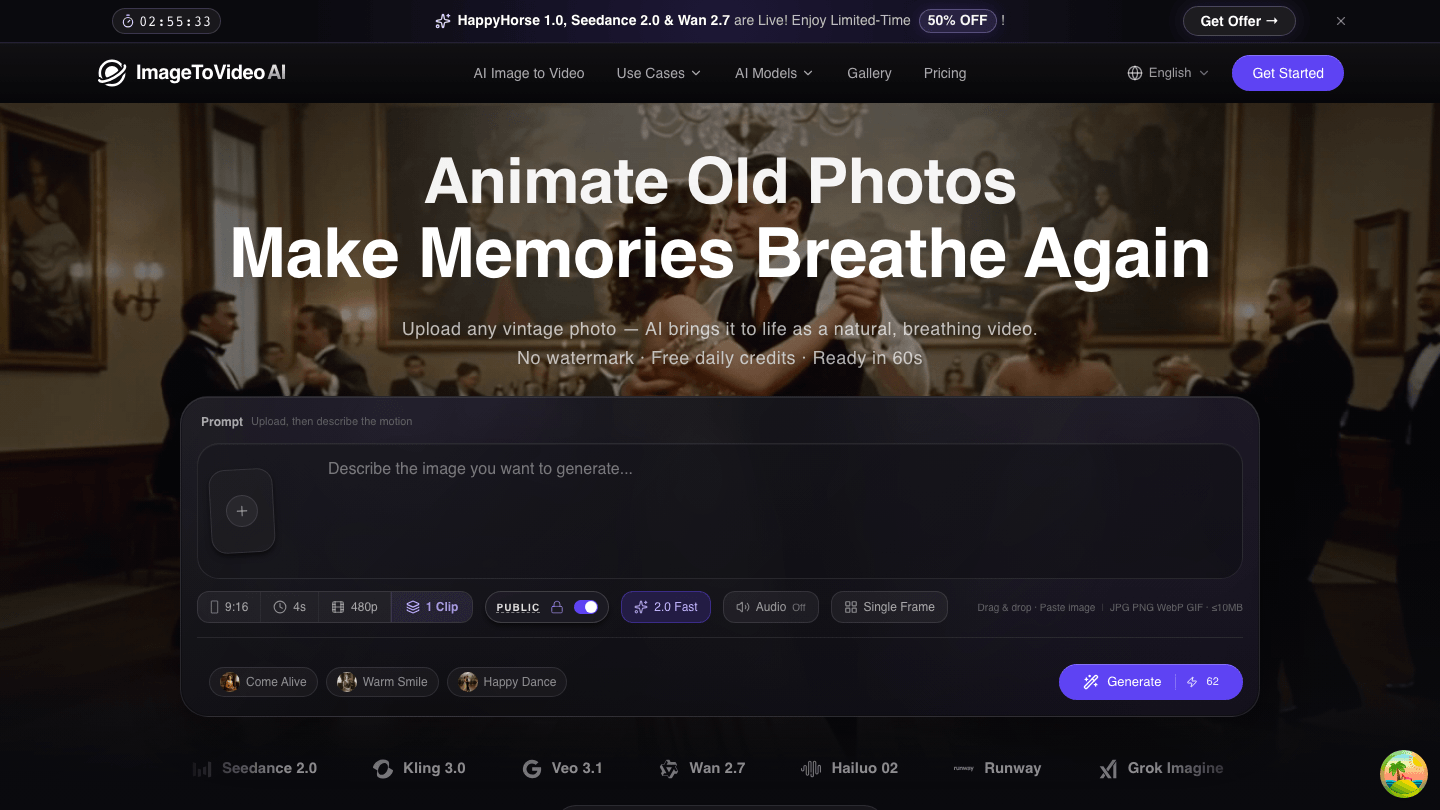
Use ImageToVideoAI when your goal is to turn an old photo into video. The dedicated page supports upload, prompt, model choice, aspect ratio, duration, resolution, clip count, visibility, and credit cost in one workspace.
Best prompt:
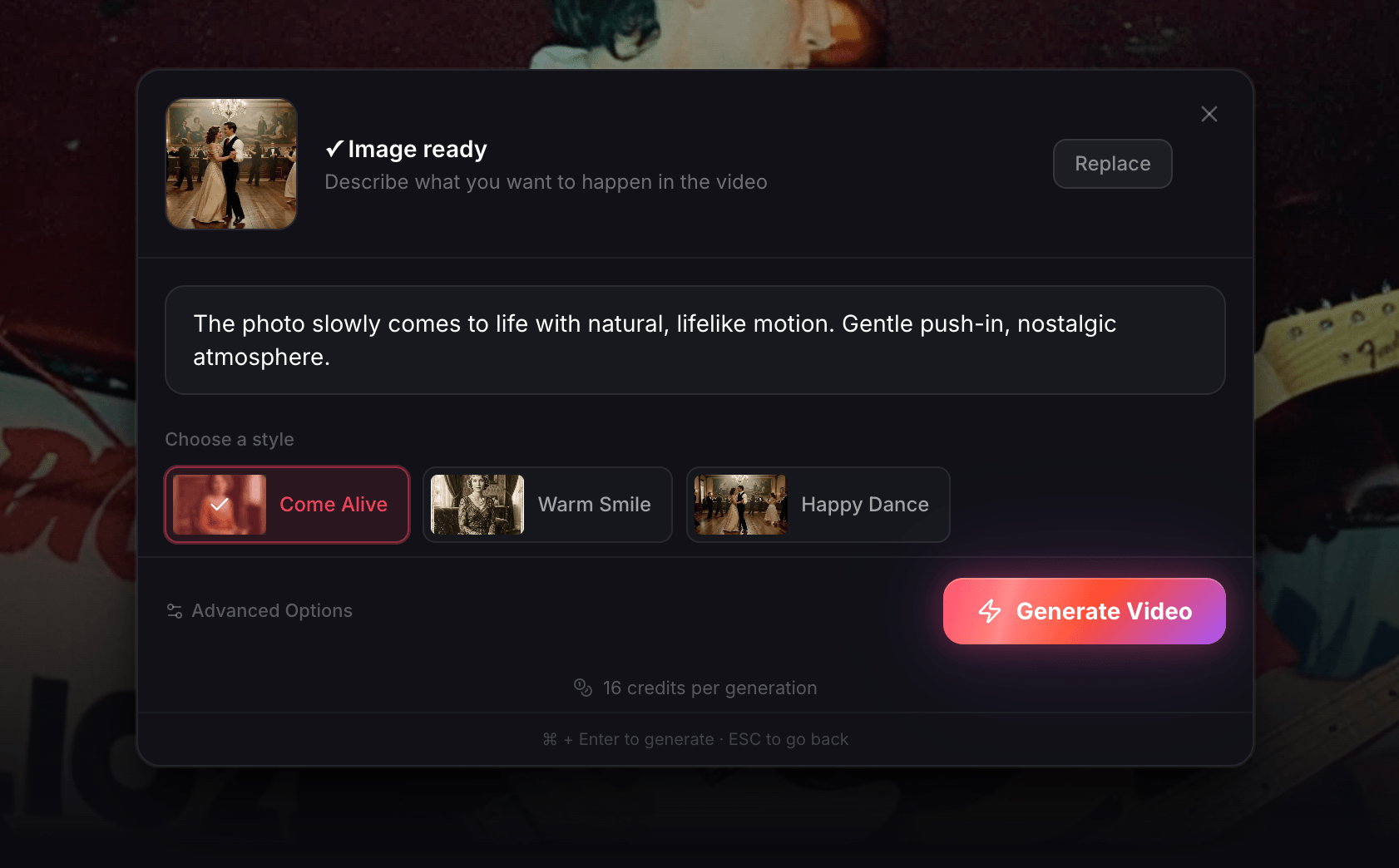
Natural breathing, gentle blink, subtle warm smile, slow push-in, preserve identity and vintage photo texture.
Useful pages:
2. Restore before animation
If the photo has scratches, heavy grain, or very low resolution, improve the still image first. This gives the video model cleaner facial detail and better edges.

Start with restore and animate old photos if the image is damaged.
3. Colorize before animation
Colorization can make a family portrait feel more present before motion is added. Keep the final animation gentle, because strong movement can make colorized details look less stable.
Use colorize and animate old photos for black-and-white portraits, faded scans, and sepia images.
Step-by-step workflow
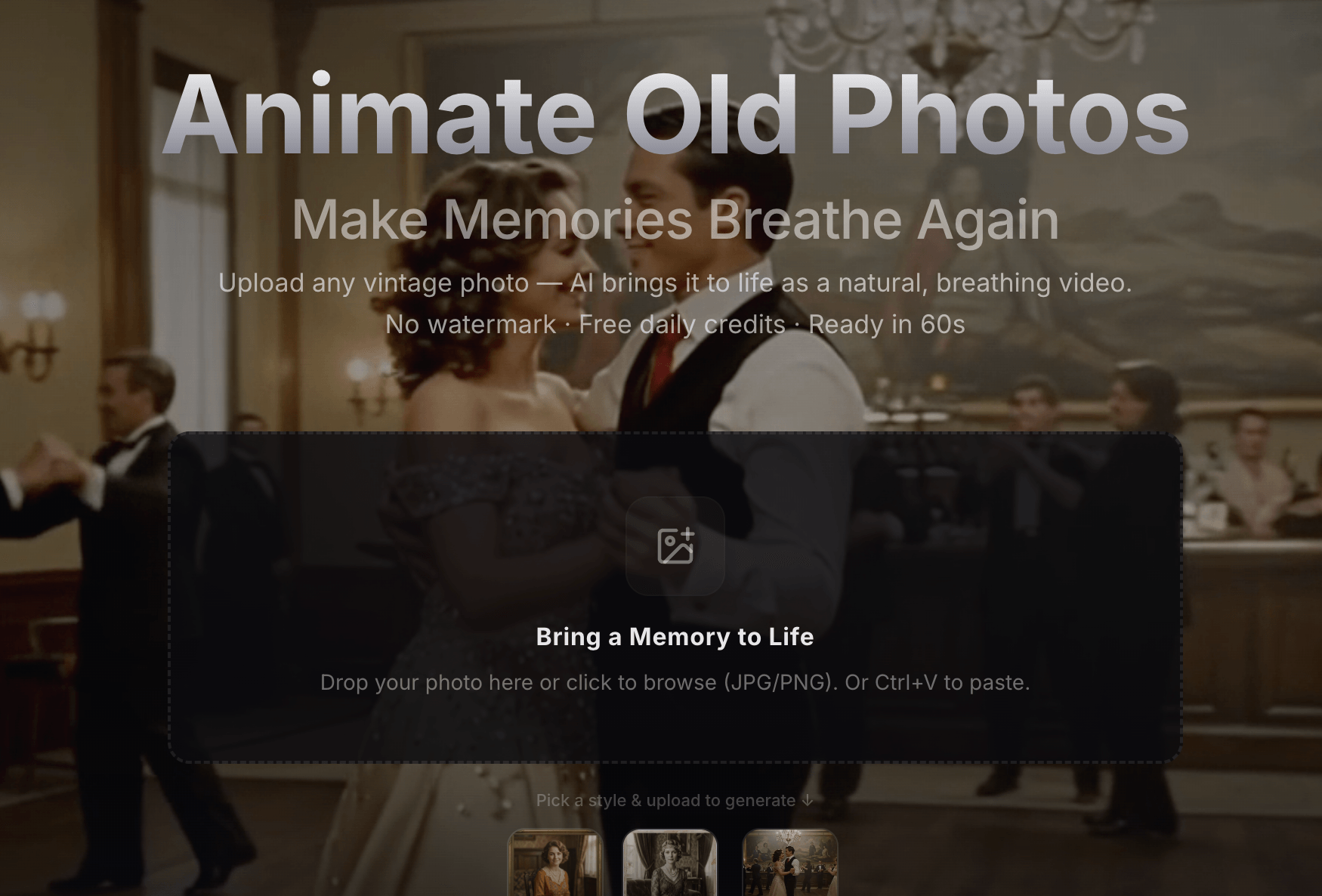
Step 1: Upload the old photo
Use a clear scan or phone photo where the main subject is visible. Cropped faces, blocked eyes, or tiny subjects are harder for AI models.
Step 2: Write a restrained prompt
Old photos usually look better with quiet motion: breathing, blinking, a gentle smile, or a slow camera push. Avoid extreme action unless the image has enough detail.
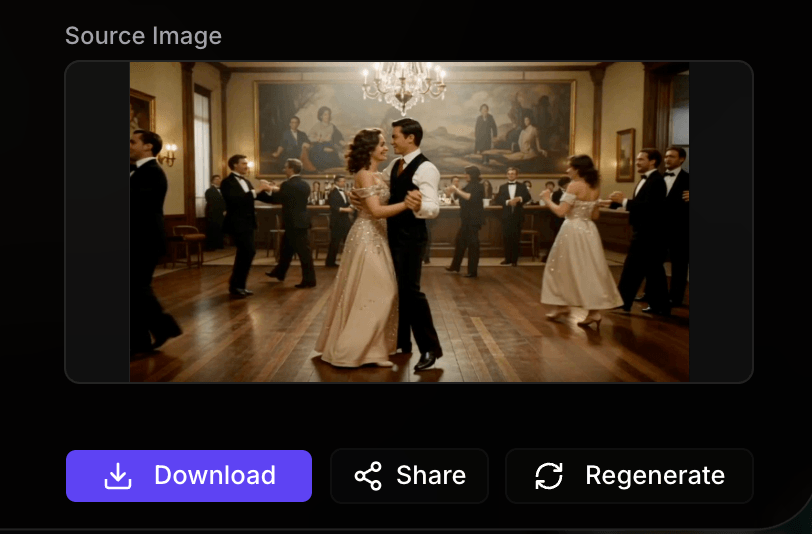
Step 3: Export and reuse the best result
Generate a short draft first. When the movement looks right, choose stronger settings for the final render.
Common mistakes
- Asking an old portrait to dance when the face is low-resolution
- Using a damaged scan without restoration
- Over-promising “no sign up” when generation actually requires an account
- Choosing a long clip before testing a short draft
- Ignoring aspect ratio before sharing to TikTok, Reels, Shorts, or family chat
FAQ
Can I animate old photos free online?
Yes. ImageToVideoAI is free to start after sign-in with available credits. You do not need a credit card to start, but generation requires sign-in.
Can I animate old pictures, not just old photos?
Yes. Old pictures, scanned family photos, black-and-white portraits, wedding photos, and vintage snapshots can all work when the subject is visible.
Should I restore or animate first?
Restore first if the image is scratched, faded, blurry, or low-resolution. Animate after the still image is cleaner.
What is the best app to animate old photos?
For prompt-guided old photo to video with model choice, start with ImageToVideoAI Animate Old Photos. For broader comparison, see the best app to animate old photos page.
作者

分类
What “animate, colorize, and restore” really meansBest old-photo workflows1. ImageToVideoAI for old photo animation2. Restore before animation3. Colorize before animationStep-by-step workflowStep 1: Upload the old photoStep 2: Write a restrained promptStep 3: Export and reuse the best resultCommon mistakesFAQCan I animate old photos free online?Can I animate old pictures, not just old photos?Should I restore or animate first?What is the best app to animate old photos?
更多文章
让老照片动起来 + AI 拥抱视频完整指南(2026)
基于 ImageToVideoAI 当前工作台的真实截图,手把手演示如何把老照片生成动态视频,以及如何用一张合照或两张分图制作 AI 拥抱视频。
Kling 3 vs Runway Gen-4 实测对比(2026):我用 20 张图测了两个模型
同图实测:人脸还原、镜头语言、生成速度、价格对比。看完帮你选对模型 — 两个都可免费试,无需信用卡。
40 个 AI 图片转视频提示词,复制就能用(2026 版)
一套能直接用的 40 个图片转视频提示词,覆盖人像、产品、房产、宠物和电影感镜头,还教你在 ImageToVideoAI 里写出自己的提示词。
邮件列表
加入我们的社区
订阅邮件列表,及时获取最新消息和更新