Loading
2026/05/25
Gemini Omni Video Generator Guide
What Gemini Omni can do for multimodal AI video, when to use it, and how to handle preview-model reliability inside ImageToVideoAI.
Google introduced Gemini Omni Flash at I/O 2026 as a model family that starts with video and can combine text, images, video, and voice references into one output. KIE now exposes Gemini Omni Video through its task API, so ImageToVideoAI users can test that mixed-reference workflow without leaving the generator.
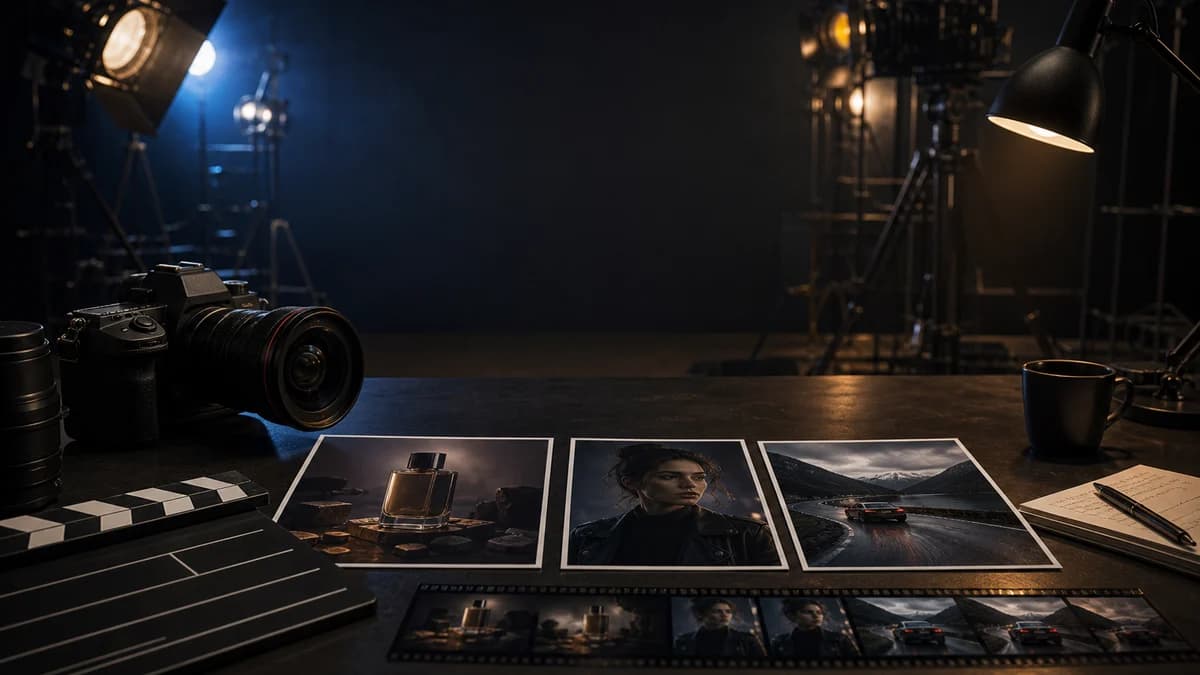
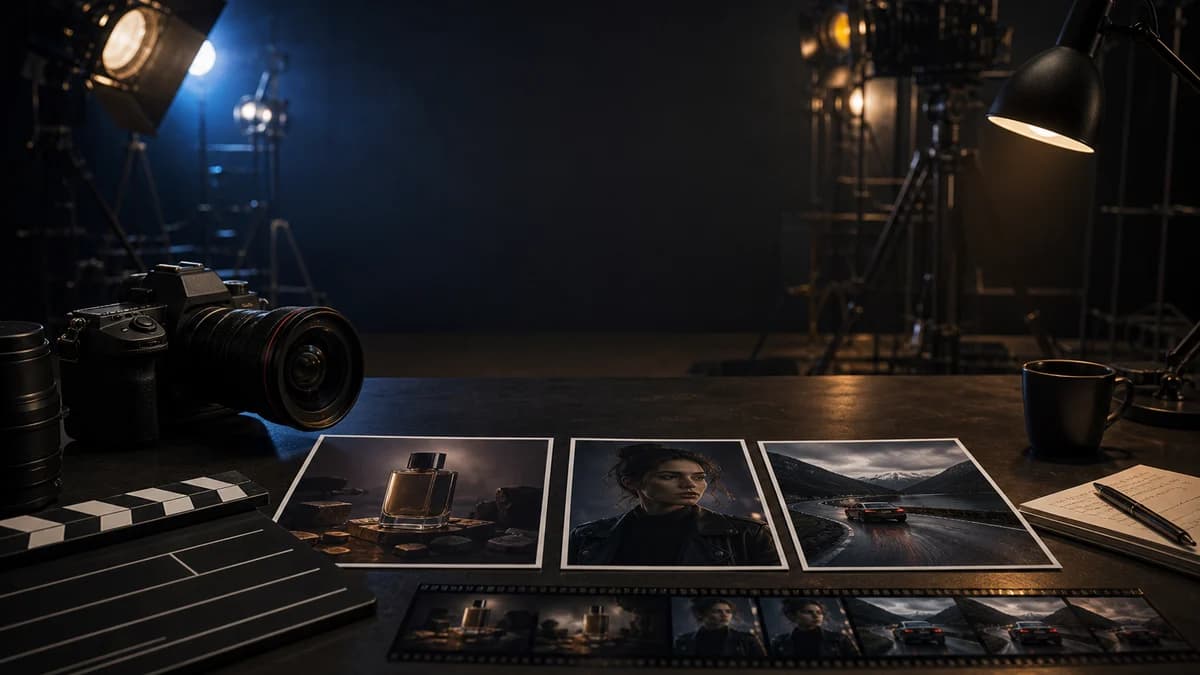
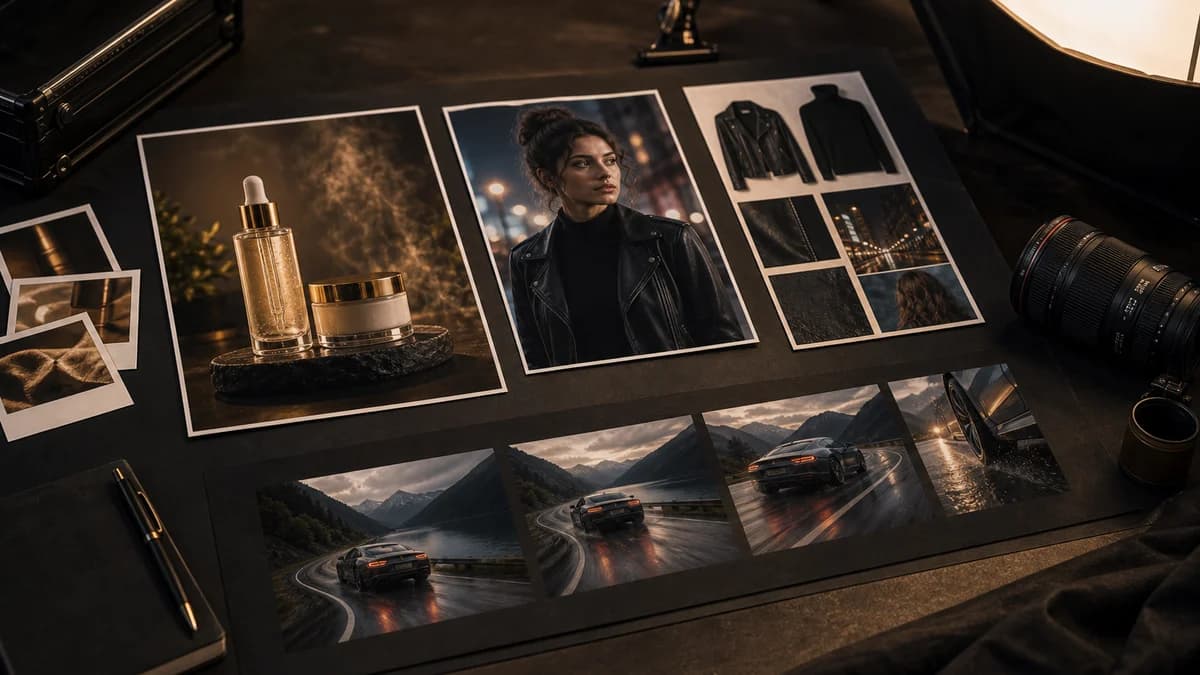
That input shape is the practical reason to care. Instead of asking a model to guess the subject, style, motion, and camera language from text alone, you can give each reference a job: one image for identity, another for lighting, a short video for movement, and the prompt for direction.
Use the Gemini Omni video generator when you want to test a mixed-reference idea. Use the broader AI models library when you want to compare it with Kling, Seedance, Wan, and Veo before spending credits.
Sources checked for this update:
- Google: Introducing Gemini Omni
- Google I/O 2026 announcement list
- KIE Gemini Omni Video API documentation
What Gemini Omni is good for
Gemini Omni is best treated as a multimodal draft model. It is strong when your idea depends on references, but it should not be your only plan for a final client delivery.
Use it when a normal text-to-video prompt is not enough:
- You have one image that defines the subject.
- You have another image that defines the style or environment.
- You have a short video that shows the movement or camera direction.
- You want to check whether several references can work together before choosing a production model.
This is different from a mature production model such as Kling 3 or Veo 3.1. Those models are usually better when you need repeatable output quality. Gemini Omni is more useful when the brief itself is made of mixed inputs.
How to use Gemini Omni in ImageToVideoAI
Open the Gemini Omni video generator. The workspace selects Gemini Omni by default, so you do not need to search through the model picker first.
Start with a small test:
- Write one clear prompt that describes the scene, subject, and camera move.
- Upload one strong reference image.
- Generate a 4-second preview.
- Check subject identity, motion, hands/faces, and camera stability.
- If the direction works, add a second reference or compare the same setup against another model.
For example:
Use the first image for subject identity. Create a slow cinematic orbit with soft volumetric light and grounded realistic motion.
That prompt is specific enough to guide the clip, but short enough that the model does not have to resolve five conflicting instructions at once.
Pick references and write prompts like a video producer
Gemini Omni rewards clean source material. The best references are not the most dramatic images; they are the easiest images for the model to read.
Use this checklist before you spend a generation:
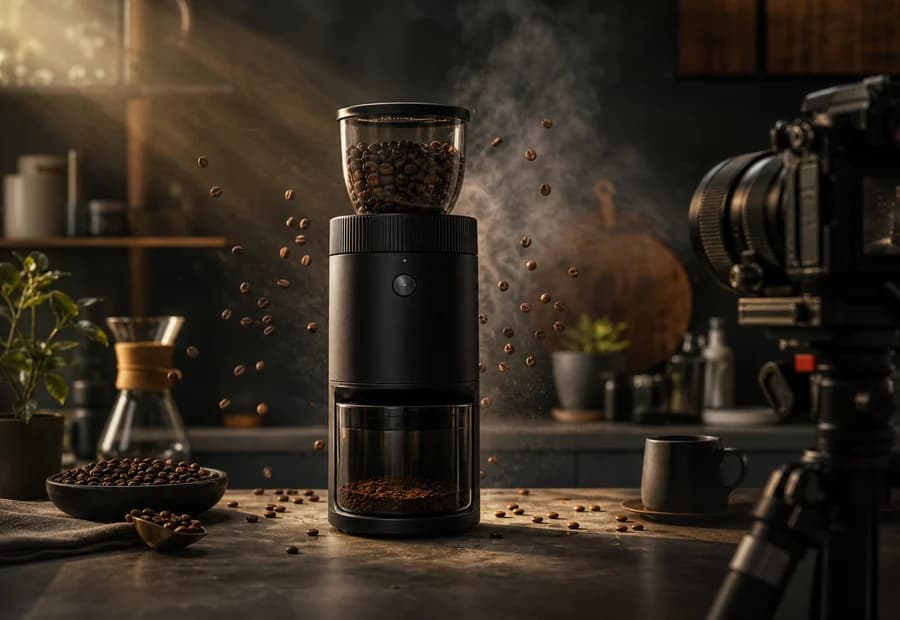
- Product shots: use a sharp image where the object edge is visible, the logo is readable, and the background does not blend into the product.
- People and characters: use one primary identity image, preferably front-facing or three-quarter view. If you add multiple images, make sure the face, outfit, and age look consistent.
- Camera motion: use a short reference video only when movement matters. A simple pan, push-in, orbit, or walk cycle is easier to transfer than a busy edited montage.
- Style references: avoid mixing daylight ecommerce, neon cyberpunk, and soft wedding footage in one task unless the prompt says which reference controls the final look.
For product ads, start with the product image and one camera instruction. For character clips, start with identity and one action. For motion tests, start with the motion reference and keep the subject simple.
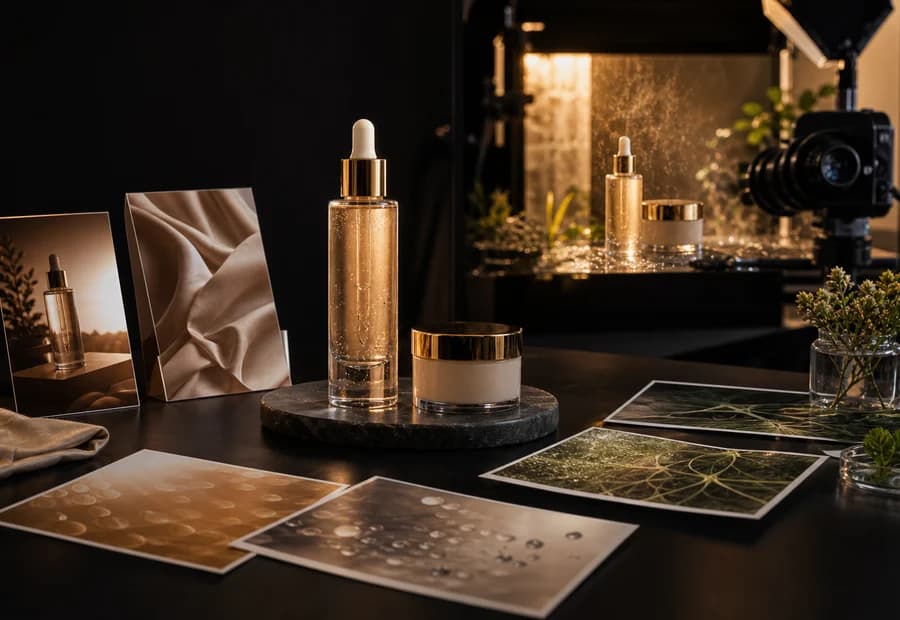
Gemini Omni supports image references and one short video reference through KIE. Use image references when the subject, lighting, product shape, or scene design matters. Use a video reference only when motion is the key part of the idea.
Good use cases:
- A product reveal where the product image must stay recognizable.
- A character clip where the face or outfit should follow a reference.
- A camera-move test where a source video shows the movement you want.
- A concept draft before rerunning the best idea with Kling, Seedance, Wan, or Veo.
Avoid mixing references that disagree with each other. If one image is bright daylight and another is a neon night scene, tell the model which one controls the final look.
KIE's Gemini Omni Video documentation also matters here because it defines the real request budget. The total upload quota is 7 units:
- Each image URL uses 1 unit.
- Each video reference uses 2 units.
- Only 1 video can be included in a request.
- Each character ID uses 1 unit, with up to 3 character IDs.
- The total must stay at 7 units or below: images + videos × 2 + character IDs.
Do not treat Gemini Omni as a dumping ground for every asset in the folder. A tighter request usually works better and costs less to debug.
Better prompt structure:
Subject: use image 1 for the exact product shape and label.
Scene: place it on a warm kitchen counter with morning light.
Motion: slow push-in, 4 seconds, no cuts.
Rules: keep the logo readable, do not add extra packaging, do not change the product proportions.
Weak prompt:
Make a cool cinematic ad with this product, lots of energy, premium look, viral style, dramatic camera, realistic, high quality.The weak version sounds impressive but gives the model too many vague choices. The stronger version assigns roles, limits motion, and defines what must not change.
Common mistakes to avoid:
- Using too many references: more inputs can make the model split attention. Start with one image, then add one reference only if it solves a specific problem.
- Letting style fight identity: if character identity matters, do not let a strong style image rewrite the face or outfit.
- Asking for several camera moves: "orbit, zoom, dolly, handheld, drone shot" usually creates unstable motion. Pick one.
- Skipping a 4-second test: longer generations are more expensive to debug. Use a short draft to check direction first.
- Ignoring final-use format: decide whether you need 9:16 social, 16:9 hero video, or a square product loop before writing the prompt.
Three reliable starter workflows
Product ad preview
Use this when you have a packshot, Amazon image, Shopify product photo, or founder-shot product image.
Setup:
- Image 1: clean product photo.
- Optional image 2: desired background or lighting style.
- Duration: 4 seconds for the first pass.
- Prompt: "Use image 1 for the exact product shape and label. Place it on a warm kitchen counter. Slow push-in camera. Keep the logo readable. Do not change the product proportions."
What to check:
- Does the product still look like the source image?
- Did the model invent extra buttons, labels, or packaging?
- Is the camera movement smooth enough for a social ad?
If the product drifts, remove the style reference and rerun with only the product image.
Character continuity test
Use this when the face, outfit, or character silhouette matters.
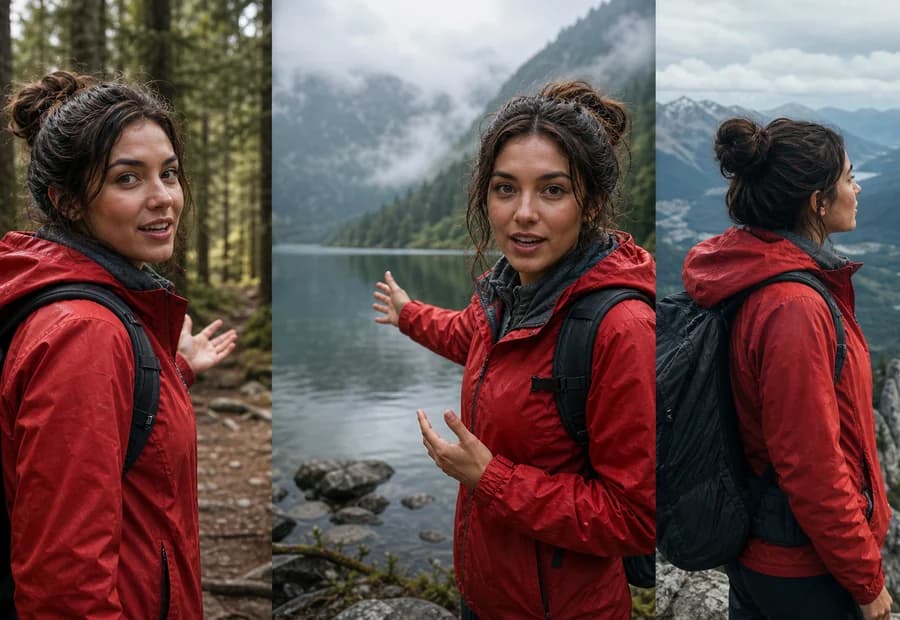
Setup:
- Image 1: the clearest identity reference.
- Image 2: optional location reference.
- Prompt: "Use image 1 for the same person, same red jacket, same hairstyle. Place the character beside a misty mountain lake. Slow handheld documentary camera. Keep facial features stable."
What to check:
- Face shape and age.
- Outfit consistency.
- Hands and teeth.
- Whether the location reference overwhelms the identity reference.
If the character changes too much, make the identity instruction first and remove weaker references.
Motion-transfer test
Use this when the source video's camera move or action matters more than the subject.

Setup:
- Image 1: target subject.
- Video reference: short motion clip, ideally one clean move.
- Prompt: "Use the image for the subject. Use the video reference only for camera motion and pacing. Keep the subject from the image, do not copy objects from the video reference."
What to check:
- Did the model transfer motion without importing unwanted objects?
- Did the subject remain recognizable?
- Did the clip keep one clear camera move instead of cutting around?
Current reliability expectations
Gemini Omni is still a fast-moving model surface.
Google is rolling Omni Flash through Gemini, Flow, YouTube Shorts, and YouTube Create, while developer/API access is still expanding. On the KIE side, Gemini Omni Video is exposed as a task endpoint: submit a job, then check task details or receive a callback when the task finishes.
That means queue behavior can be less predictable than mature production models. Sometimes a Gemini Omni task may take longer, fail, or need a retry. This is a provider-side limitation, not automatically a sign that your prompt or workspace is broken.
ImageToVideoAI handles this in two ways:
- If the provider task fails, your credits are refunded automatically.
- You can rerun the same prompt in a more stable model from the same workspace.
If a task sits in queue longer than usual, wait for the callback or task status before changing the prompt. If the same prompt fails twice, keep the reference image and rerun it in Kling, Seedance, Wan, or Veo instead of spending more attempts on the same unstable setup.
For final delivery, compare Gemini Omni with Kling 3, Seedance 2, Wan 2.7, or Veo 3.1.
Gemini Omni vs other AI video models
Gemini Omni vs Veo 3.1
Veo 3.1 is the safer choice when you want polished Google video output. Gemini Omni is more useful when you want to test prompt, image, video, and voice-reference inputs together.
Gemini Omni vs Kling 3
Kling 3 is stronger for complex physical interaction and high-stakes final clips. Gemini Omni is better for experimental multimodal drafts.
Gemini Omni vs Seedance 2
Seedance 2 is more reliable for motion, choreography, and social video production. Gemini Omni is better when the input brief depends on multiple reference types.
Gemini Omni vs Wan 2.7
Wan 2.7 is a flexible workhorse for image, text, and video workflows. Gemini Omni is newer and more experimental, so use it when the test specifically needs Gemini Omni's mixed-reference behavior.
A practical decision rule
Choose Gemini Omni when the input is the hard part.
Choose another model when delivery quality is the hard part.
That rule saves time. If you are trying to combine a product image, a mood reference, and a motion reference, Gemini Omni is worth testing first. If you already know the scene and only need a polished output for an ad, landing page, wedding reel, or client handoff, compare the same prompt against Kling, Seedance, Wan, or Veo before you finalize.
Try Gemini Omni
Start with a 4-second draft in the Gemini Omni video generator. If the provider queue is unstable, your failed task is refunded automatically, and you can switch to another model without leaving the workspace.
Related pages:
Author

Categories
What Gemini Omni is good forHow to use Gemini Omni in ImageToVideoAIPick references and write prompts like a video producerThree reliable starter workflowsProduct ad previewCharacter continuity testMotion-transfer testCurrent reliability expectationsGemini Omni vs other AI video modelsA practical decision ruleTry Gemini Omni
More Posts

Pet photo to video AI: make your dog or cat actually move (2026)
Turn a still photo of your pet into a video where they wag, blink, or stretch — the prompts, the models, and the settings that keep fur texture and face shape intact.
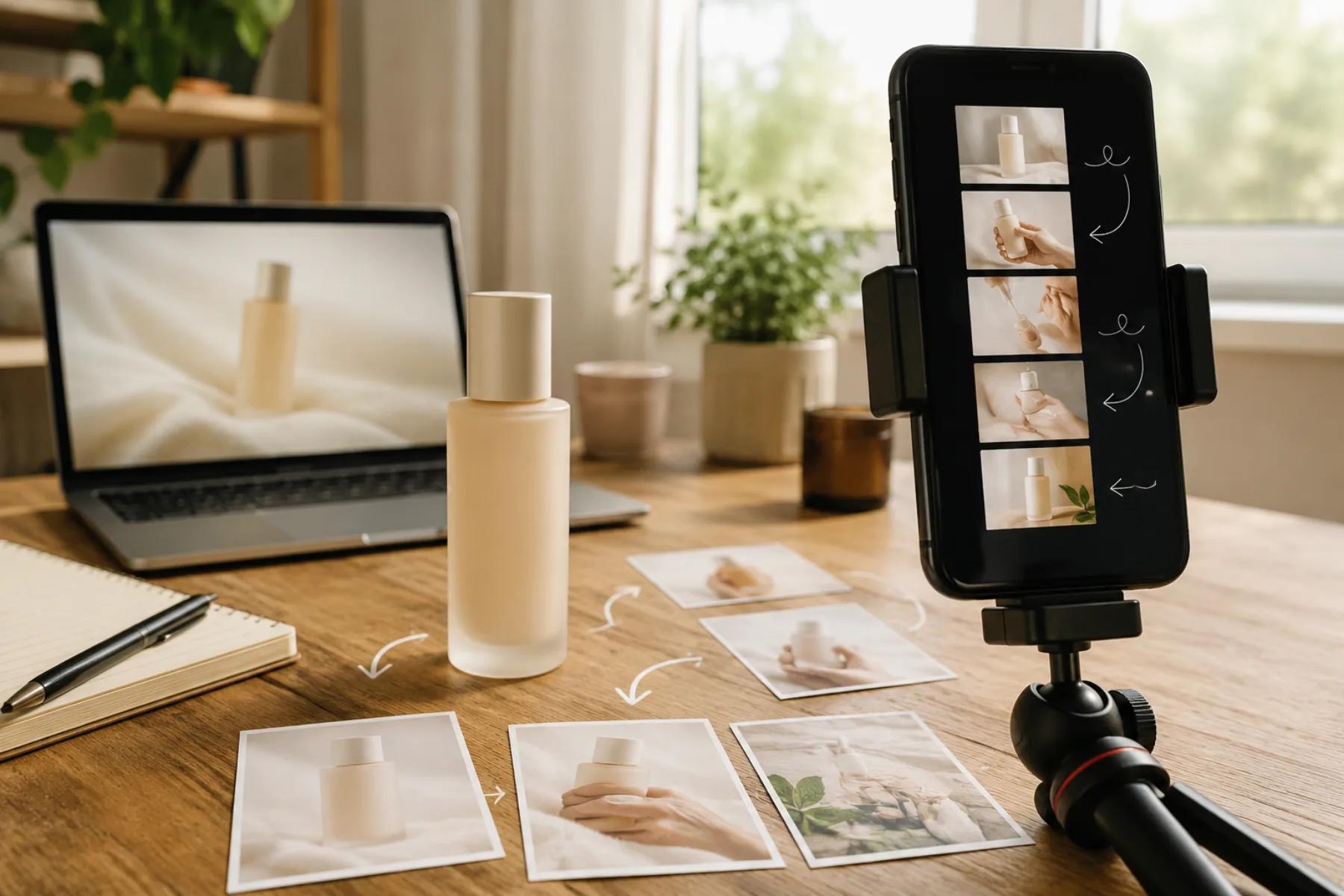
How to Create an AI UGC Product Video from One Product Image
A practical workflow for turning a single product photo into an AI UGC product video ad: six-shot vertical plan, copy-paste prompts, motion limits, label caveats, edit steps, an A/B matrix, and a pre-launch QA checklist.
AI image to video: Kling vs Runway vs Hailuo vs Veo (2026)
Honest 2026 comparison of Kling 3, Runway Gen-4, Hailuo 02, Google Veo, and Seedance — all tested on the same images to show real differences.
Newsletter
Join the community
Subscribe to our newsletter for the latest news and updates