Loading
2026/06/07
How to Turn a Photo Into a TikTok Video With AI (2026 Step-by-Step)
Turn one still photo into a vertical 9:16 TikTok or Reels clip with AI. A real screenshot walkthrough of the ImageToVideoAI workspace, plus prompts and posting tips.
You have a photo on your phone. A good one. Now you want it moving on TikTok, not sitting flat in your camera roll.
The fix most people reach for is a slideshow app. You drop in the photo, add a Ken Burns zoom, slap on a trending song, done. The problem is everyone's feed is full of those, and the fake pan-and-zoom reads as lazy. People scroll past.
Image-to-video AI does something different. It actually animates the photo. Hair moves. Steam rises off the coffee. The camera pushes in like a real shot. That's the difference between a clip people watch and one they swipe away. This guide walks through the whole thing in ImageToVideoAI, from a single still to a vertical MP4 you can post.
What kind of photo works best
Not every photo animates well. The ones that do share a few traits.
- Clear subject. One obvious focal point: a face, a product, a pet. Busy group shots confuse the model.
- Decent lighting. Sharp, well-lit photos give the model more to work with. Dark or blurry shots come out muddy.
- Vertical-friendly framing. TikTok is 9:16. If your photo is landscape, crop it tall first or leave headroom so the subject isn't cut off. Portraits and full-body shots work as-is.
A quick gut check: if the photo already looks good as a still on your feed, it'll animate well. If it's already weak, AI won't save it.
Step-by-step: photo to TikTok video
Six steps. Maybe two minutes of clicking, then you wait for the render.
Step 1: Open the generator
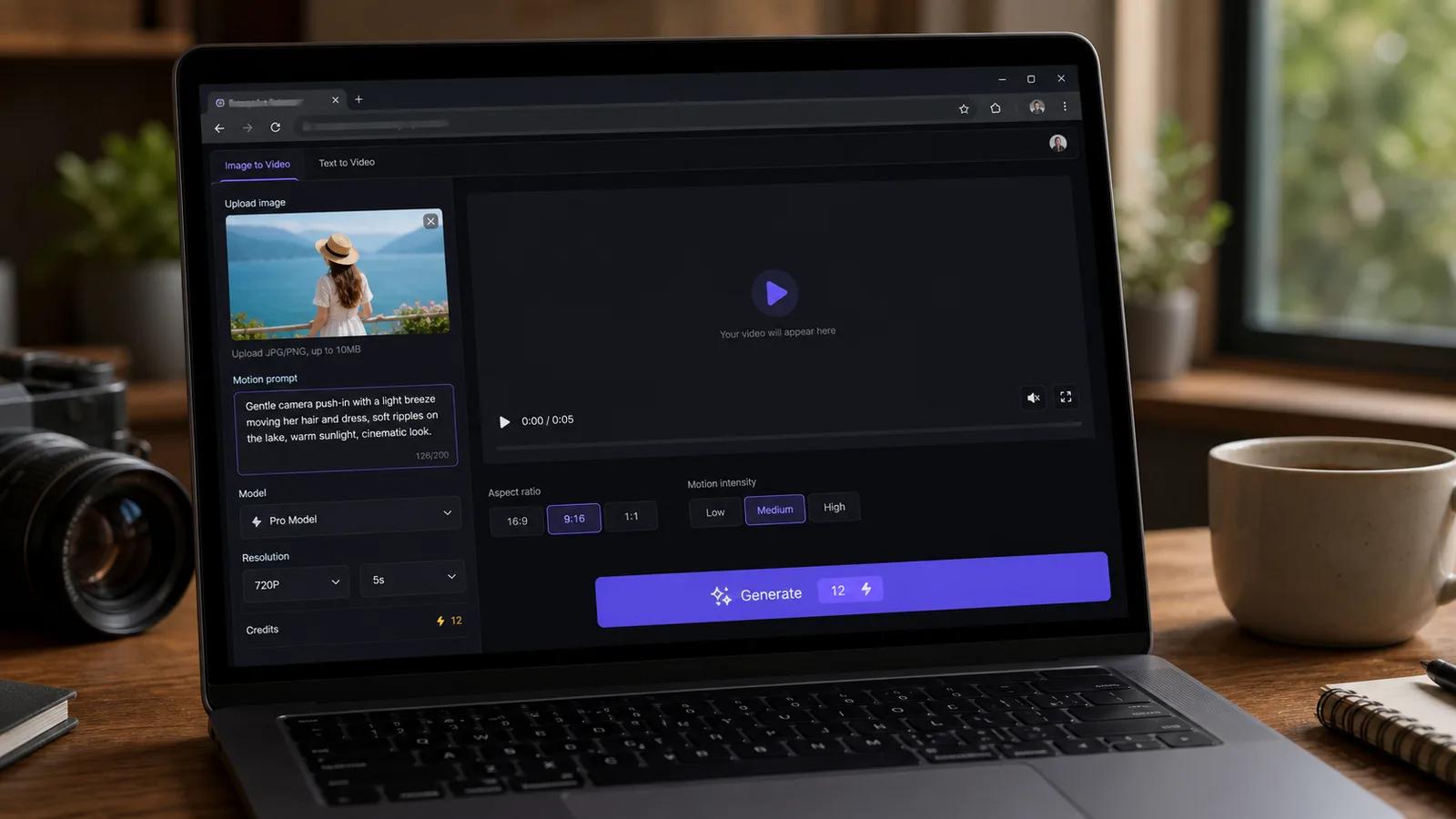
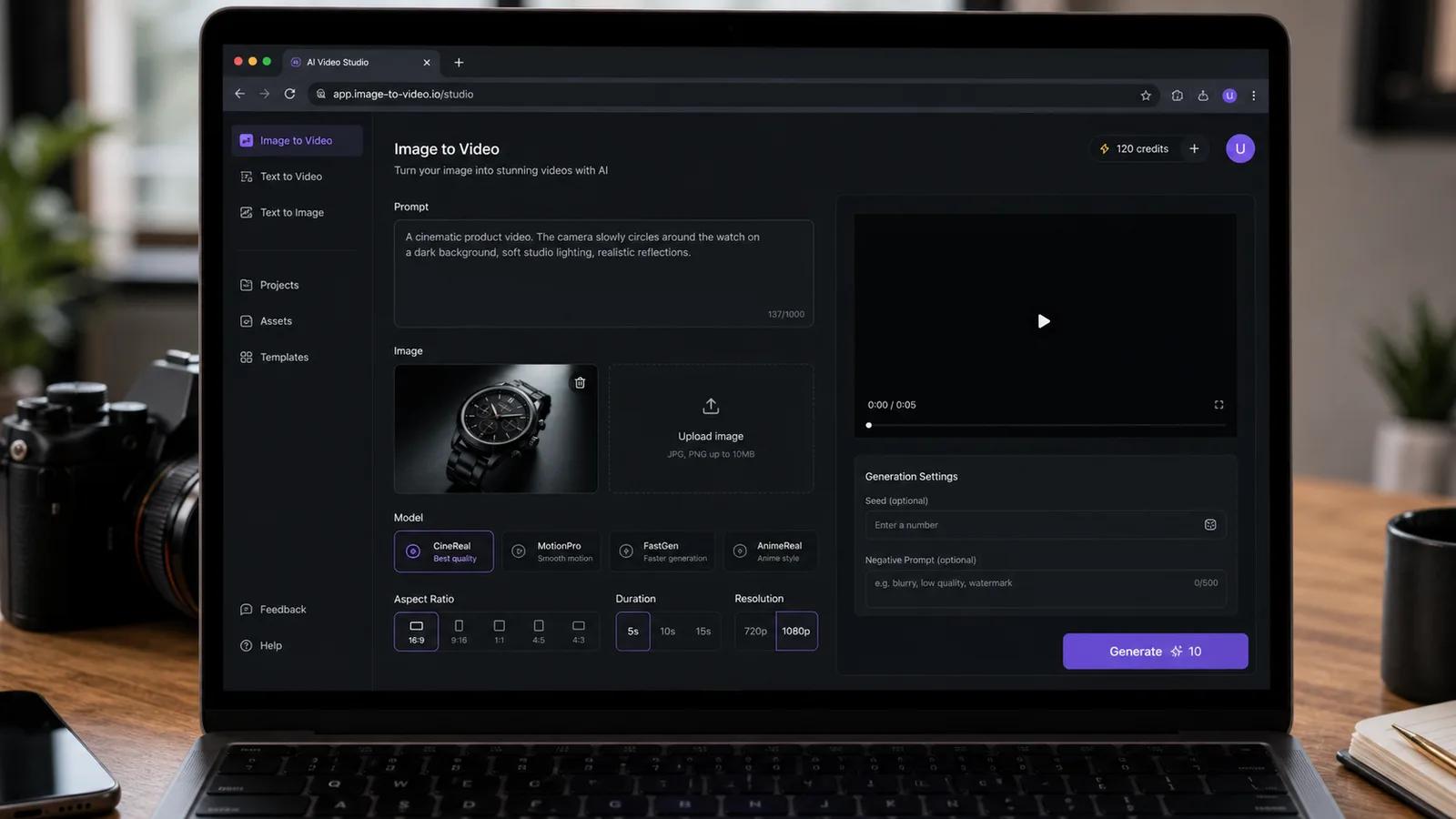
Head to the image-to-video generator and you'll land in the workspace. Everything you need is on one screen: the upload slot inside the prompt box, the controls underneath, and a Generate button that shows the live credit cost.
Step 2: Upload your photo
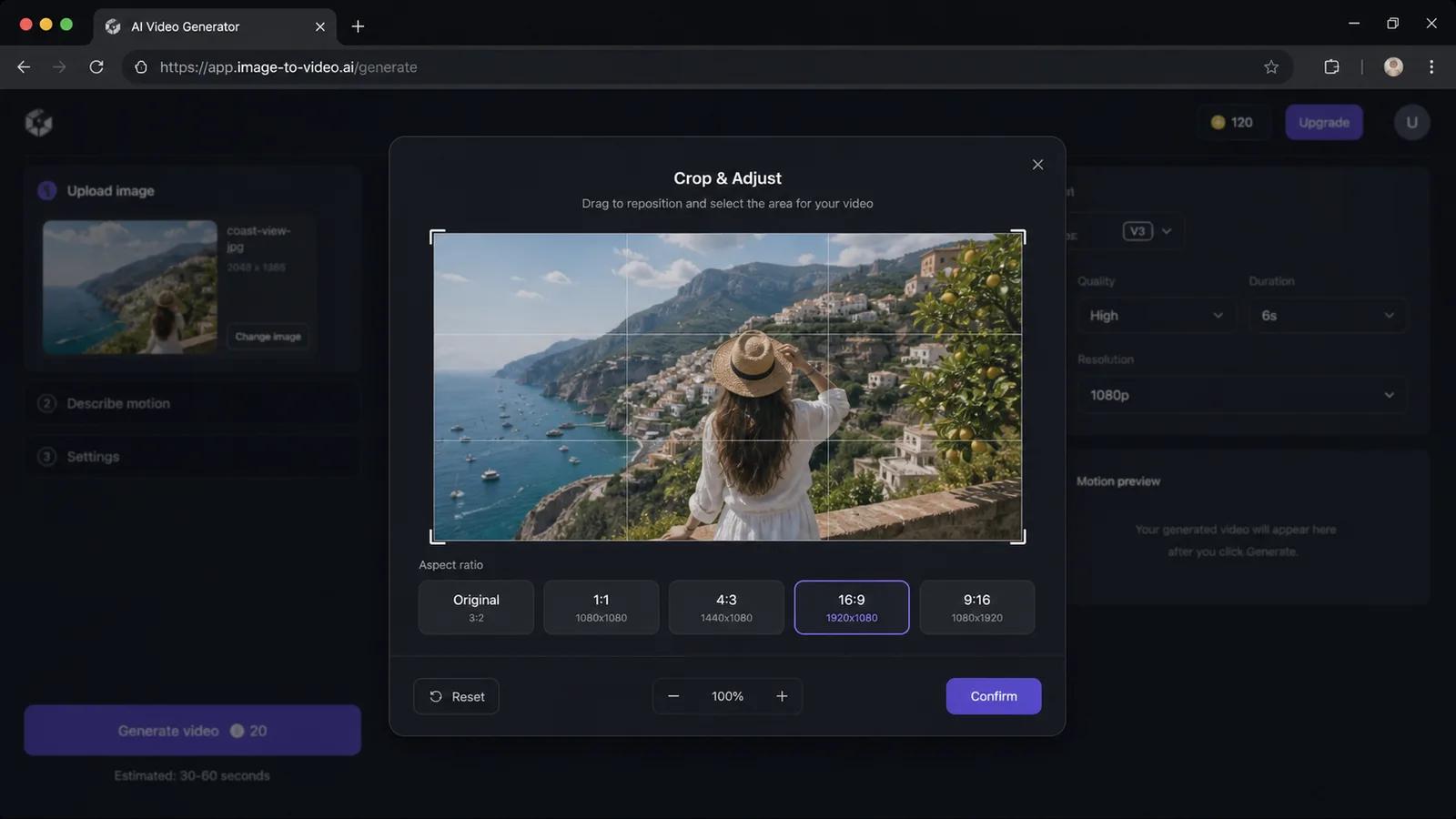
Click the + in the upload slot, or drag the file straight in. You can also paste from your clipboard. It takes JPG, PNG, WebP, GIF, and HEIC, so a photo straight off your iPhone works without converting anything. A crop window opens so you can frame the shot before it lands in the workspace.
Step 3: Set the aspect ratio to 9:16 and pick duration
Open the aspect ratio selector and choose 9:16. This is the one setting people forget, and it's the one that matters most for TikTok. Pick 9:16 and your clip fills the screen instead of sitting in a letterboxed box.
Then set the duration. Start with 4 or 5 seconds. Short clips render faster, cost fewer credits, and short is what TikTok rewards anyway.
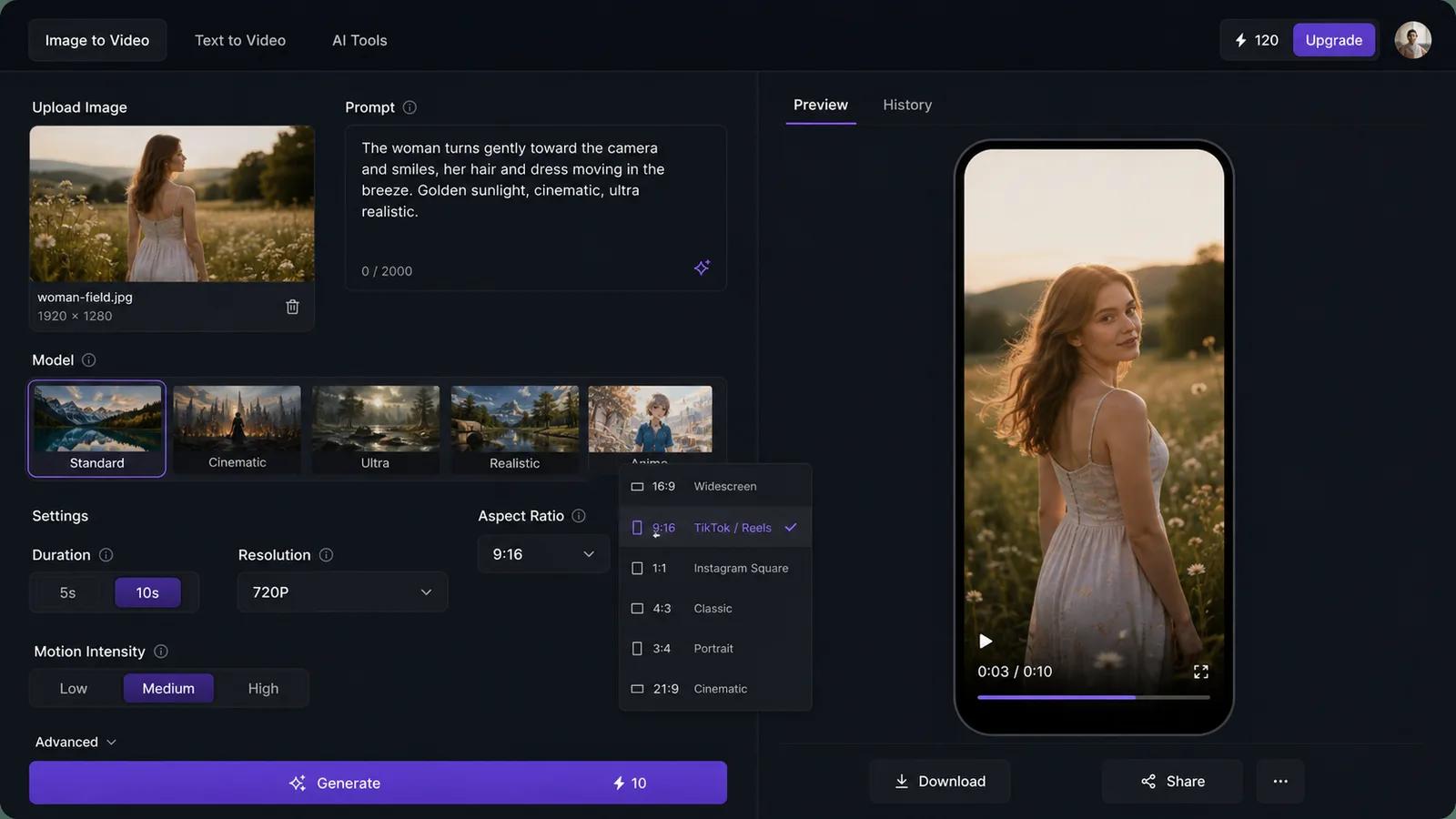
Step 4: Write a prompt that adds motion
The prompt tells the model how to move the image. Be specific about the motion you want. Vague prompts give you nothing; concrete ones give you a real shot.
A few that work:
Slow cinematic zoom in on her face, soft hair movement in the breeze, warm natural light.
Gentle camera push toward the subject, a subtle smile forming, shallow depth of field.
Slow pan across the scene, drifting clouds in the background, golden-hour glow.
Name the camera move, name what should move in the frame, and add a lighting note. That's the recipe.
Step 5: Choose a model and resolution
Open the model picker. Each model has a strength:
| Model | Best for |
|---|---|
| Kling | Faces and people |
| Seedance / Wan | Camera motion and movement |
| Veo 3.1 | Polished, high-end look |
| Hailuo, Runway, Grok, Gemini Omni | Worth testing per shot |
Animating a person? Start with Kling. Want a dramatic camera move on scenery? Seedance or Wan.
Here's the money-saving move: test cheap first. Set the resolution to 480p or 720p and a short duration, then generate. If the motion looks right, rerun it at 1080p for the final. You'll burn far fewer credits than going straight to max settings and hating the result.
Step 6: Generate, preview, and download
Check the credit cost on the Generate button, then click it. The cost scales with model, duration, resolution, and clip count, so a quick 5-second 720p test stays cheap.
When it finishes, the clip plays right in the preview. Like it? Download the MP4. Don't like the motion? Tweak the prompt and run it again before you bump up to 1080p.
Prompt ideas for TikTok-style clips
Copy these, swap in details to match your photo, and run them.
Portrait, subtle motion:
Slow zoom in, hair gently moving in the wind, eyes blinking naturally, soft warm light, cinematic.
Product reveal:
Camera slowly orbits the product on a clean surface, soft studio lighting, a light reflection moving across the surface.
Pet:
Dog tilts its head and ears perk up, slight camera push-in, bright natural daylight, playful.
Outfit / fashion:
Subtle fabric movement, slow camera tilt from feet to head, fashion editorial lighting, confident pose.
Food:
Steam rising from the dish, slow push-in, glistening texture, warm cozy lighting.
Scenery:
Slow drone-style pull-back revealing the landscape, drifting clouds, golden hour, sweeping motion.
Make it perform on TikTok
The render is half the job. The post is the other half.
Win the first second. TikTok decides fast whether to keep showing your clip. Lead with the strongest frame and the boldest motion. If your push-in or reveal lands right at the start, more people stay.
Add captions and sound in the app. ImageToVideoAI gives you the clean animated MP4. Do the text overlays and trending audio inside TikTok after you download. Native captions and sounds tend to get pushed harder than anything baked in beforehand.
Keep it 9:16 and keep it short. You already set the ratio in Step 3, so it'll fill the screen. A tight 4 to 8 second clip loops, and loops rack up watch time.
Test variations. Don't marry the first render. Run the same photo with two different prompts, or the same prompt across Kling and Seedance, and post the one that hits hardest. Cheap test runs make this painless.
If you're animating an old family photo for a nostalgia post, there's a dedicated flow at Animate Old Photos. And if you want sound generated alongside the motion, the Gemini Omni video generator handles audio in the same pass.
FAQ
Is it free?
You get credits to start, so you can try it without paying. Cost scales with the model, duration, resolution, and clip count you choose, which is exactly why testing at 480p or 720p first keeps you cheap.
Will there be a watermark?
You preview the clip before spending credits, and you download a standard MP4. Watermarking depends on your plan, so check the current details on the pricing page before a final export.
What's the best length for TikTok?
Short. A 4 to 8 second clip that loops will usually out-perform a longer one. Loops build watch time, and watch time is what the algorithm counts. Start at 4 or 5 seconds.
Can I use a selfie?
Yes, and selfies are some of the best source photos. A clear, well-lit face is exactly what Kling is built for. Crop it to 9:16, write a prompt with subtle motion like a slow zoom and natural hair movement, and you've got a strong vertical clip.
Turn your photo into a clip
Pick a photo. Open the generator. Set 9:16, write a motion prompt, test cheap, then export. The whole thing takes a few minutes once you've done it once.
Start with the image-to-video generator. If you want more prompt patterns, the full photo-to-video guide goes deeper, and the best free AI video generators breaks down how the models compare.
Author

Categories
What kind of photo works bestStep-by-step: photo to TikTok videoStep 1: Open the generatorStep 2: Upload your photoStep 3: Set the aspect ratio to 9:16 and pick durationStep 4: Write a prompt that adds motionStep 5: Choose a model and resolutionStep 6: Generate, preview, and downloadPrompt ideas for TikTok-style clipsMake it perform on TikTokFAQTurn your photo into a clip
More Posts
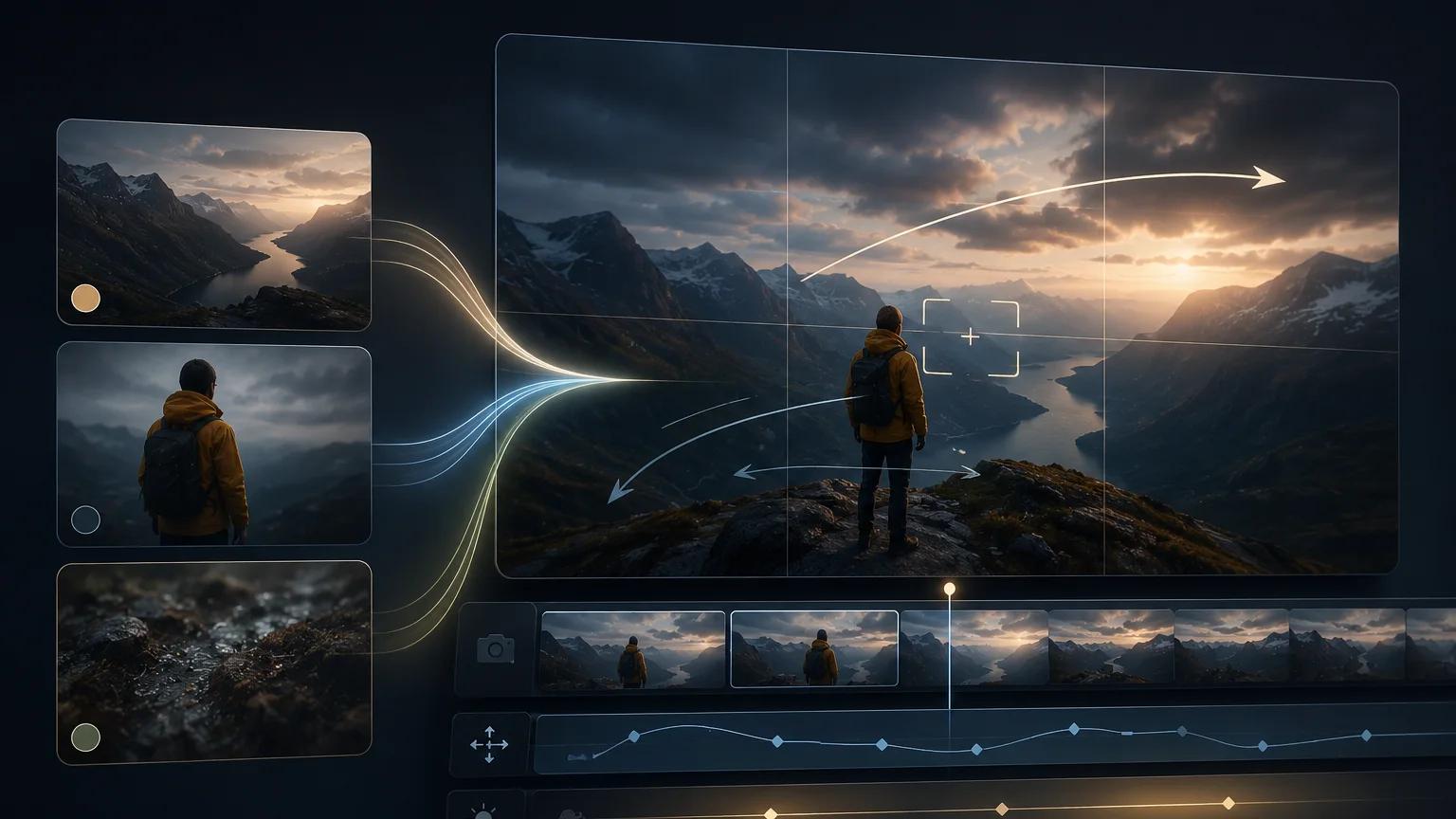
Veo 3.1 reference image workflow: keep subjects consistent across clips
A practical Veo 3.1 reference image workflow for image-to-video creators — how to pick reference frames, write prompts, and stack clips without losing your subject.
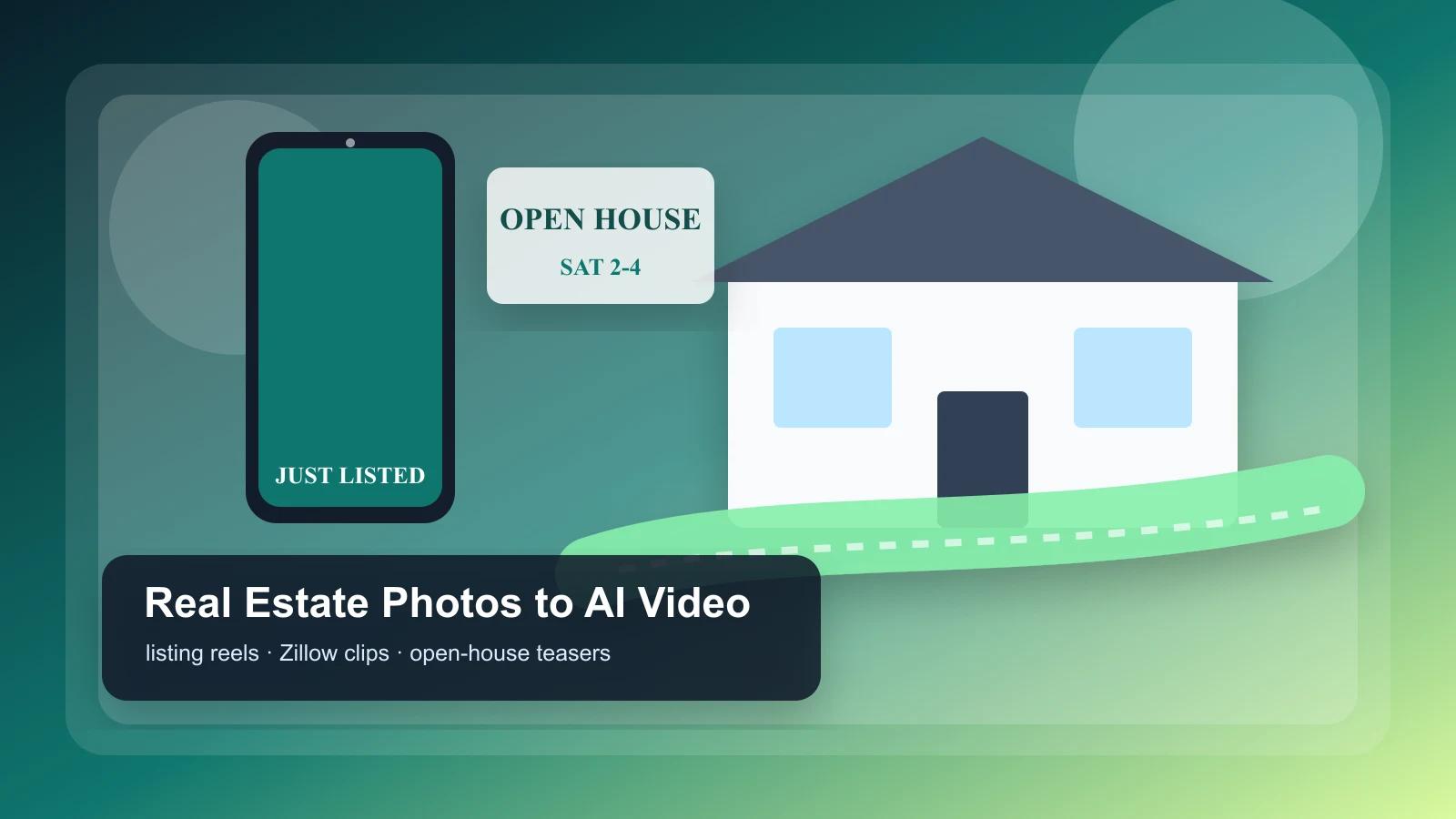
Real estate photo to video: AI listing reels (2026)
Turn listing photos into vertical tour reels, Zillow-ready clips, and open-house teasers with AI. Includes templates and a per-listing checklist.
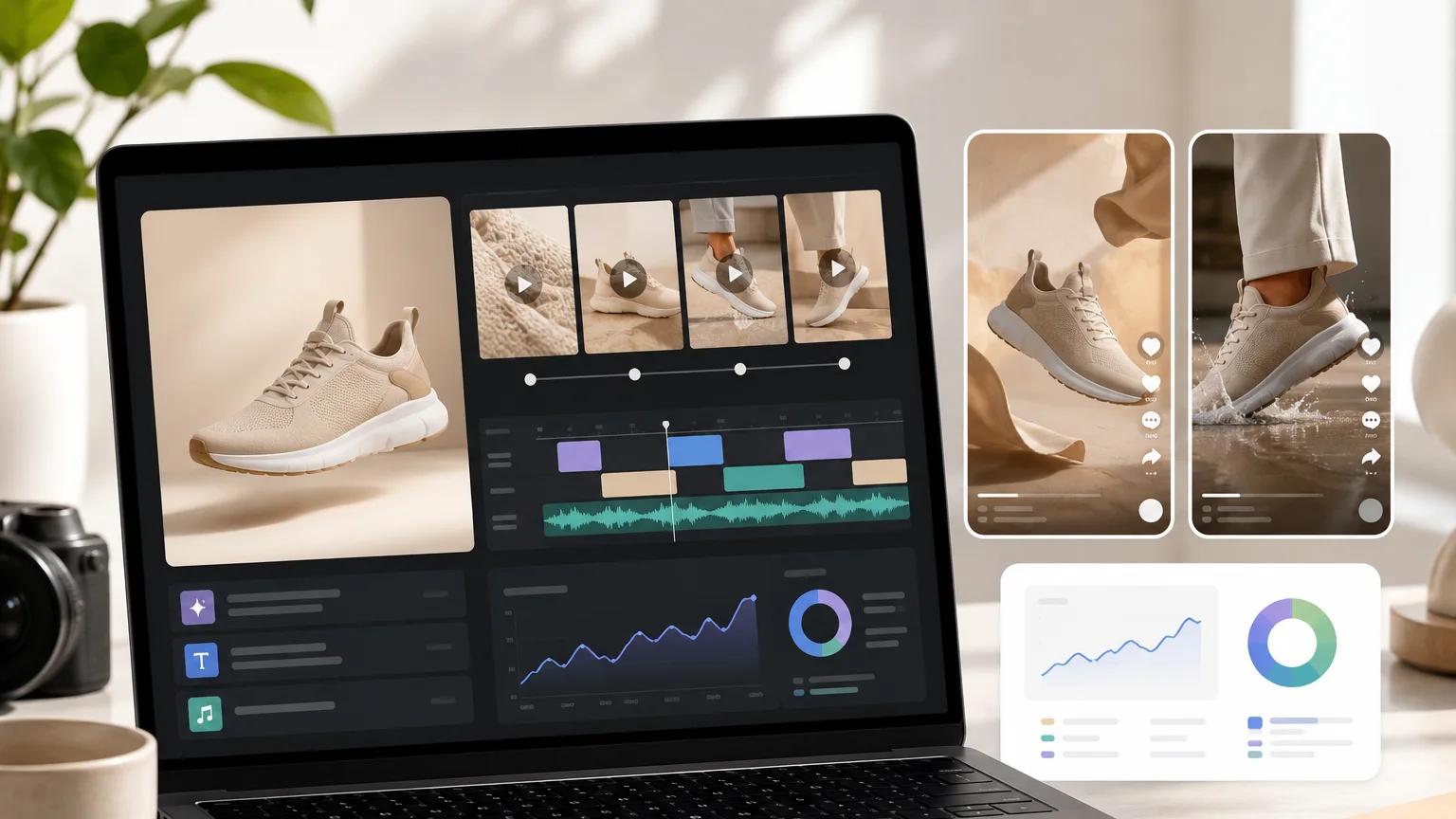
Ecommerce product video ads: a testing workflow from one product photo
A repeatable testing workflow for ecommerce product video ads — turn one product photo into a shot matrix, prompt angles, naming system, and QA checklist you can iterate on weekly.
Newsletter
Join the community
Subscribe to our newsletter for the latest news and updates