Loading
2026/07/13
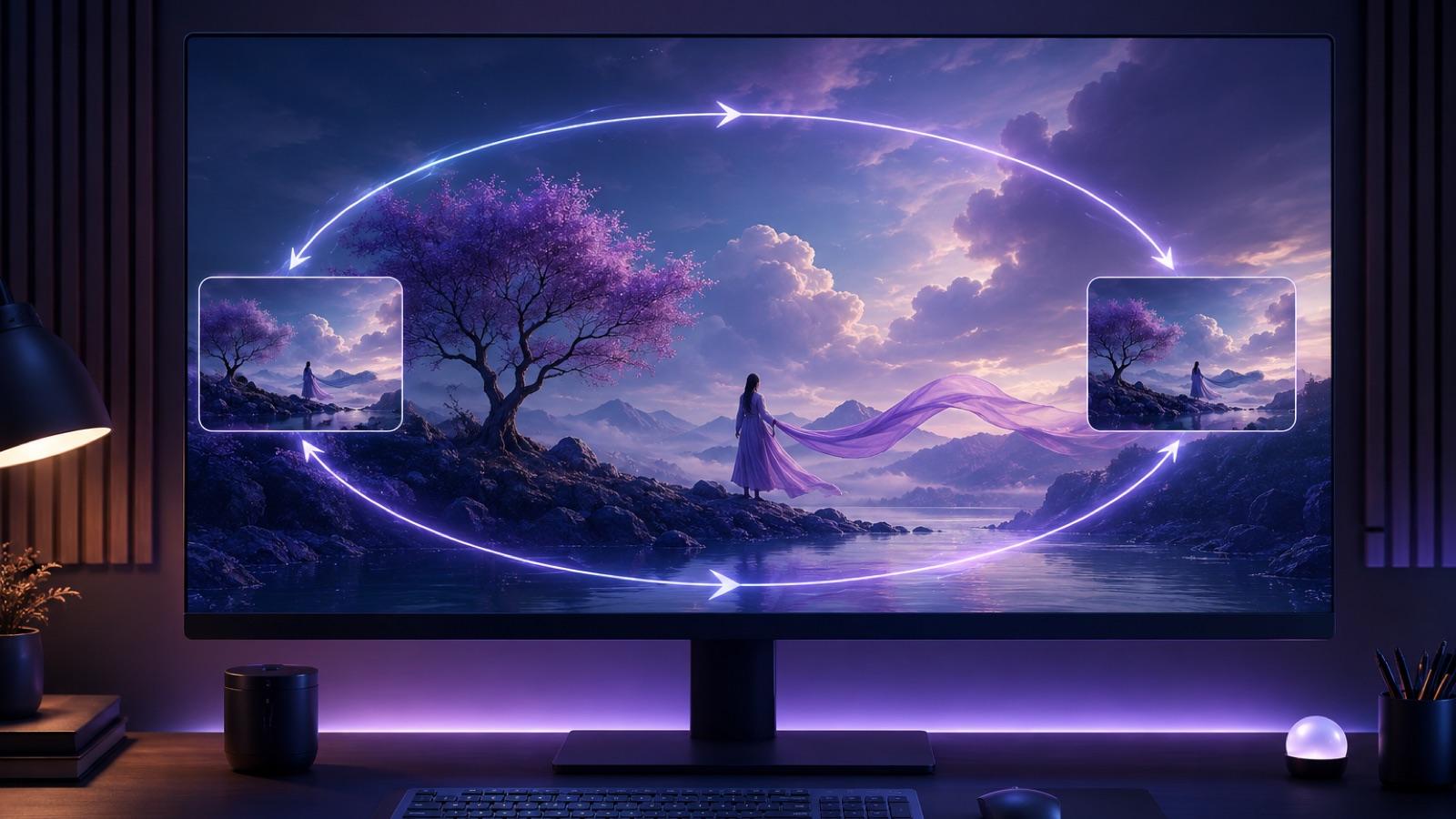
How To Create A Seamless Loop AI Video From One Image
A practical playbook for turning one still photo into a seamless loop AI video: prompt shape, two honest workflows, QA checklist, and fixes for common seam artifacts.
A good loop is quiet. It plays, restarts, and you never catch the join. That is harder than it sounds when the source is a single still and the motion comes from a generative model, because most image-to-video models are trained to produce a forward clip with a beginning, a middle, and an end — not a circle. This guide is for creators who want a repeatable way to get a seamless loop AI video from one image, using tools that exist today and workflows that are honest about their limits.
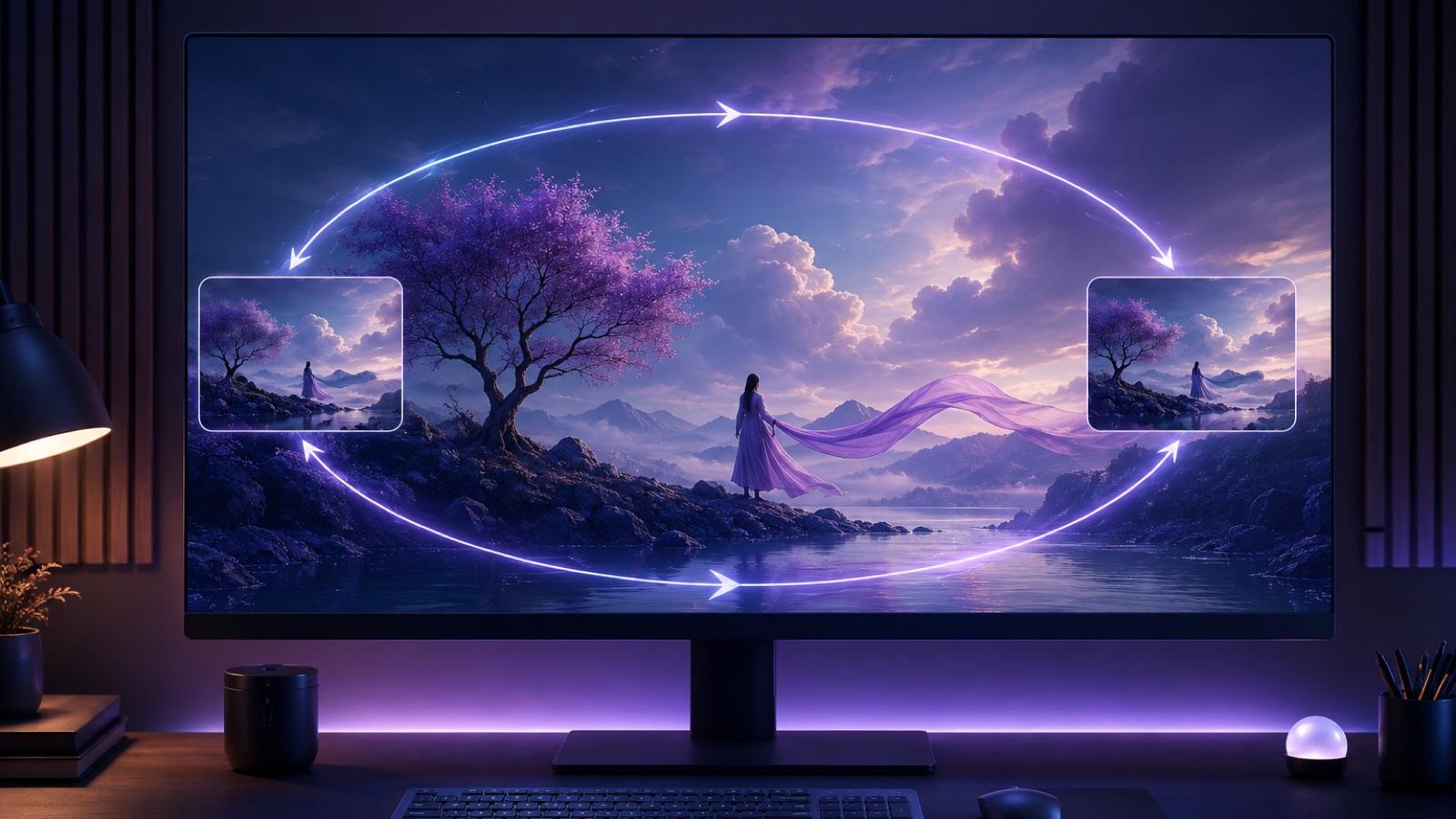
We will cover two workflows that actually work, the prompt shape that makes them possible, a QA checklist, and the failure modes you will run into on the way. Where useful, we point to Runway's own image-to-video prompting notes and Adobe's Premiere tutorial on looping so you can compare craft advice from the toolmakers themselves.
What "Seamless" Really Means Here
A seamless loop is a clip whose last frame flows back into its first frame without a visible cut, jump, or lighting shift. In practice you get there in one of two ways:
- Generate motion that is inherently cyclical — a slow drift, a repeating sway, a shimmer — and then hide the small residual seam with a short crossfade or a reverse-boomerang.
- Anchor the start and end frames to the same still, if your tool of choice supports first/last-frame conditioning, so the model is forced to return to the pose it started in.
Both approaches respect the same underlying rule: the more restrained and repeatable the motion, the closer you get to a true loop. Fireworks, breaking waves, and a cat jumping off a shelf are not loop material. Steam rising from a mug, hair moving in a soft wind, and a neon sign flickering are.
The DreamLoop research paper illustrates the same boundary from the technical side: its method uses the input image as both the first- and last-frame condition to enforce a loop. You do not need that specialized system to make a useful loop today, but you do need the right source image, a restrained prompt, and usually one editing pass.
Pick The Right Source Image First
Before you touch a prompt, evaluate the still. A photo that loops well usually has:
- A stable composition with clear negative space where motion can happen (sky, water, fabric folds, foliage).
- A restrained subject — a portrait looking to camera, a static product, a landscape at golden hour.
- No irreversible content — no candle being lit, no glass tipping over, no person walking out of frame.
- Even lighting with no rapidly shifting shadows, so a small time delta between the first and last frame is invisible.
If your still fails these tests, fix the still. It is cheaper than fighting the model later.
Two Honest Workflows
There is no button on ImageToVideoAI that says "make this loop." What the platform does well is generate the source image-to-video clip from your still across multiple models; the loop itself is finished in a lightweight editor (Premiere, CapCut, DaVinci Resolve, or a browser tool). Here are the two workflows we actually recommend.
Workflow A — Generate Cyclical Motion, Hide The Seam
This is the default. You prompt for motion that already reads as repeatable, generate a short clip, then use a small crossfade or a reverse to reduce any residual jump.
- Open /image-to-video and upload your still.
- Write a prompt built around a single, restrained, repeatable motion (see the prompt library below).
- Start with the shortest duration your chosen model supports; 4–6 seconds is a useful working range when available.
- Bring the clip into any editor. Inspect the first and last moments, then trim only the unstable settling frames you actually see.
- Duplicate the trimmed clip and reverse the copy, or apply a short (6–12 frame) crossfade from the tail of the clip back to the head.
- Export as MP4 for social, WebM or MP4 for web backgrounds, or GIF/animated WebP only for small decorative uses.
Adobe walks through the crossfade half of this in their Premiere and Firefly looping tutorial — worth reading if you want the exact keyframe placement.
Workflow B — Reuse The Same Frame As Start And End
Some image-to-video tools let you supply both a first frame and a last frame. When they do, the honest way to force a loop is to pass the same still for both anchors. The model then interpolates a motion arc that has to return to where it started.
ImageToVideoAI itself does not currently expose a dedicated loop mode or first/last-frame control — it generates a forward clip from your one image. If you have access to a tool that supports end-frame conditioning, using the same image at both ends gives the model a stronger return target, but you should still inspect the seam. If not, Workflow A is your route.
Decision Table: Which Workflow When
| Scenario | Best Workflow | Why |
|---|---|---|
| Ambient website hero (soft drift, particles) | A | Motion is naturally cyclical; a 6-frame crossfade is invisible |
| Product hero for an ecommerce PDP | A + reverse | Boomerang reads as "product breathing"; no seam risk |
| Cinemagraph from a landscape photo | A | Only one region moves; the still parts hide any seam |
| Social loop (Reels, TikTok, Shorts) | A + music | Repeated playback exposes the seam, so picture and audio both need a clean loop point |
| Lowest-edit loop | B (if tool supports it) | Same-frame anchoring can reduce the visual mismatch at the join |
| Complex narrative motion | Neither — do not loop | Loops require restraint; use a normal clip instead |
The Prompt Shape That Actually Loops
Runway's own Image-to-Video Prompting Guide recommends using the prompt to describe motion rather than repeating what is already visible in the image. That is a useful principle across image-to-video workflows. For loops, also describe camera restraint and absence of irreversible events.
A loop-friendly prompt has four parts:
- Subject state — what stays still.
- One repeatable motion — what moves, and its cadence.
- Camera behavior — locked off, or a very slow, restrained drift.
- Negative space — what must not happen (no cuts, no zoom-out, no new subjects, no scene change).
Copy-Paste Prompt Examples
Product hero (cosmetics jar):
Static cosmetic jar on marble, product label unchanged, gentle continuous steam rising from the surface, particles drifting upward at a slow even pace, camera locked off, soft studio lighting, no zoom, no pan, no relighting, no new objects entering frame.
Ambient website background (forest at dusk):
Wide forest scene at dusk, tree trunks fully static, only leaves and grass swaying gently in a soft breeze, motion cyclical and restrained, camera locked, no parallax push-in, no wildlife appearing, no light changes.
Cinemagraph (portrait with cherry blossoms):
Portrait subject perfectly still, eyes forward, only cherry blossom petals falling slowly and continuously through the frame, petals drifting at a uniform pace, camera locked off, no head movement, no smile change, no new petals bursting into frame.
Social loop (neon sign):
Neon sign on a rainy street, sign glow flickering at a slow steady rhythm, faint rain particles falling straight down, camera locked, no vehicles passing, no people entering, no rack focus.
For more on how to describe motion and camera cleanly, see our companion articles on AI image-to-video prompts and AI video camera movements.
What prompts cannot do: no wording will guarantee a mathematically perfect loop, because the model is still generating a forward clip. Prompts stack the odds; the editor closes the last percent.
Numbered Workflow, End To End
- Choose a still that passes the "restrained subject, stable composition, no irreversible events" test.
- Draft a prompt using the four-part shape above.
- Generate a short clip on /image-to-video. Use 4–6 seconds when the selected model offers that duration, and prefer the shorter option for your first test.
- Review the clip and write down the seam location (first frame vs last frame).
- Trim the unstable settling frames you identified; do not cut a fixed number by habit.
- Choose your seam strategy: crossfade (6–12 frames), reverse-boomerang (double the clip and reverse the copy), or same-frame anchor if your tool supports it.
- Export loop-friendly formats: MP4 (H.264) for broad compatibility, WebM for web backgrounds, and GIF only for small tiles.
- Preview in the target context — a 400×400 GIF looks different from a full-bleed hero.
QA Checklist Before You Ship
- The loop plays at least three times without you spotting the seam.
- Subject identity is stable — no morphing face, no changing product label.
- Lighting is flat across the loop point.
- No object enters or leaves frame across the seam.
- Motion cadence feels natural, not sped up at the ends.
- Audio (if any) also loops, or drops out at the seam.
- File size meets the performance budget for the target page or platform.
Failure Modes And How To Fix Them
| Symptom | Likely Cause | Fix |
|---|---|---|
| Visible jump at the seam | Motion is not cyclical | Switch to Workflow A + reverse-boomerang, or reshoot with same-frame anchoring |
| Subject morphs mid-clip | Prompt too loose or clip too long | Shorten clip to 4s; tighten "subject stays still" wording |
| Lighting shifts across loop | Model added a time-of-day cue | Add negative: "no light changes, no shadow drift" |
| Ghosting during crossfade | Crossfade too long | Cut crossfade to 6–8 frames |
| Compression artifacts on export | Wrong codec/bitrate for surface | Re-export; see our artifact troubleshooting guide |
| Loop looks fine but "boring" | Motion too restrained | Add one secondary cyclical element (particles, glow) |
Scenario Playbook
Product hero on a PDP — Use Workflow A + boomerang. The reverse can hide the seam and make the product feel gently animated. Keep the clip brief, then test it on the real product page rather than assuming more motion helps.
Ambient website background — Workflow A with a short crossfade. Export WebM or MP4 at the smallest acceptable dimensions and bitrate, and pair it with a static poster frame while the video loads.
Landscape cinemagraph — Workflow A. Isolate motion to one region (water, leaves, clouds). Everything else stays photographic.
Social loop — Workflow A with music. Repeated playback can make a weak seam more obvious, so preview several cycles with audio before publishing. The first-second hook still matters, but it does not replace a clean join.
FAQ
Does ImageToVideoAI have a dedicated loop mode? No. ImageToVideoAI generates the source image-to-video clip from your still. Turning that clip into a seamless loop happens in an external editor, using either a crossfade or a reverse-boomerang.
Can I get a perfect loop from prompt wording alone? No. Prompts strongly influence how loop-friendly the motion is, but the final seam is closed in editing — or by using a tool that supports same-frame start/end conditioning.
How long should the source clip be? Use the shortest duration that supports the motion. A 4–6 second source is a practical starting range when the selected model offers it; longer clips usually require more seam and drift review.
What format should I export? MP4 (H.264) for social and general web, WebM for backgrounds where filesize matters, GIF only for small decorative tiles.
Do I need a paid plan? Check pricing for the current credit allowances and plan details before generating a batch.
Loops reward restraint. Pick a still that wants to breathe, write a prompt that names exactly one motion, keep the camera locked, and close the last percent in an editor. When you are ready to generate the source clip, start one loop-friendly generation at /image-to-video and take it from there.
Author

Categories
What "Seamless" Really Means HerePick The Right Source Image FirstTwo Honest WorkflowsWorkflow A — Generate Cyclical Motion, Hide The SeamWorkflow B — Reuse The Same Frame As Start And EndDecision Table: Which Workflow WhenThe Prompt Shape That Actually LoopsCopy-Paste Prompt ExamplesNumbered Workflow, End To EndQA Checklist Before You ShipFailure Modes And How To Fix ThemScenario PlaybookFAQ
More Posts
How to Create an AI UGC Product Video from One Product Image
A practical workflow for turning a single product photo into an AI UGC product video ad: six-shot vertical plan, copy-paste prompts, motion limits, label caveats, edit steps, an A/B matrix, and a pre-launch QA checklist.
How to turn a photo into a video with AI (2026)
The actual steps to go from a static image to an AI-generated video — model picking, prompt writing, and what to expect from the output.
AI image to video: Kling vs Runway vs Hailuo vs Veo (2026)
Honest 2026 comparison of Kling 3, Runway Gen-4, Hailuo 02, Google Veo, and Seedance — all tested on the same images to show real differences.
Newsletter
Join the community
Subscribe to our newsletter for the latest news and updates